
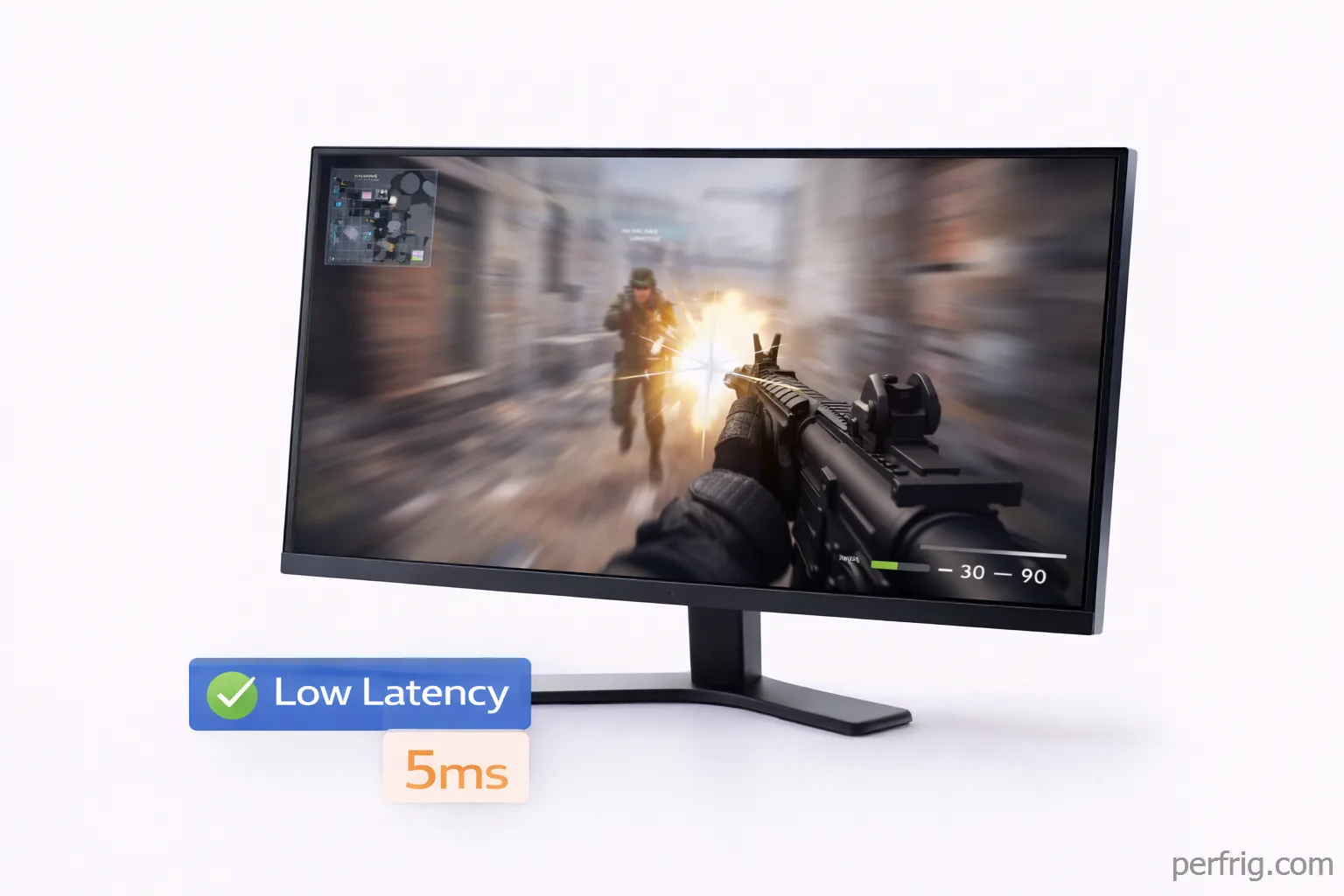
Input lag ruins competitive gaming more than any other display factor. A 144Hz monitor with 30ms input lag feels worse than a 60Hz display at 5ms—the refresh rate doesn’t matter if your actions register late. Understanding the difference between input lag and response time, configuring overdrive properly, and optimizing display settings can shave 15-20ms off your total system latency.
This guide explains what actually causes input lag, how to measure it, and which settings deliver the smoothest competitive experience. If you’ve already optimized your refresh rate and VRR settings from Part 1, these tweaks complete your display configuration. Part 1 covered refresh rate selection and VRR configuration—essential foundations before tackling input lag optimization.
Input lag vs response time: critical differences
Most gamers confuse input lag with response time, but they measure completely different delays. Input lag is the time between a mouse click or button press and that action appearing on screen. Response time measures how quickly pixels change color, affecting motion clarity and ghosting.
Input lag happens at the display controller level. When you click, your GPU renders a frame and sends it to the monitor. The monitor’s scaler processes the signal, applies image enhancements, and outputs to the panel. This processing adds delay—anywhere from 3ms on gaming monitors to 50ms+ on TVs with heavy processing.
Response time affects visual clarity during motion.

Slow pixel transitions create ghosting where moving objects leave trails. A 1ms response time means pixels fully transition in one millisecond, while 5ms panels show noticeable blur in fast-paced games. Response time doesn’t directly add input lag, but excessive ghosting makes tracking targets harder.
The relationship matters for competitive play. A monitor with 5ms input lag and 4ms response time feels more responsive than one with 15ms input lag and 1ms response time. Prioritize low input lag first, then optimize response time through overdrive settings.
Measuring input lag accurately
Manufacturers rarely publish input lag specifications. The RTINGS database provides measured input lag for popular monitors, showing real-world delays at different settings.
Practical testing works for relative comparisons. Load CS2 or Valorant, enable the in-game latency graph (NVIDIA Reflex), and compare values across monitor settings. The difference between Game Mode enabled versus disabled shows processing delay.
Most gaming monitors achieve 3-8ms input lag at native resolution with Game Mode active. Budget displays hit 10-15ms, while TVs often exceed 20ms. Anything under 10ms is competitive, over 20ms creates noticeable delay.
Game Mode and image processing
Every display enhancement adds processing delay. Game Mode disables these enhancements, prioritizing speed over image quality. Typical Game Mode disables: dynamic contrast, sharpness, noise reduction, and motion smoothing. On gaming monitors, this saves 2-5ms. On TVs, it can reduce lag by 20-30ms.
Some monitors include “instant” modes that bypass the scaler entirely at native resolution, delivering under 3ms input lag. If you’re running native 1440p or 4K, instant mode eliminates unnecessary processing.
Black frame insertion reduces motion blur but adds 4-8ms input lag. Only enable it if you value motion clarity over raw responsiveness.
Overdrive settings explained
Overdrive applies higher voltage to pixels to speed up color transitions. Every monitor includes multiple overdrive levels—typically Off, Normal, Fast, and Extreme—but optimal settings vary by panel and refresh rate.
Too little overdrive causes ghosting where pixels don’t fully transition between frames. Moving objects leave visible trails, making tracking dificult in fast games. Response times stay at the panel’s native speed, typically 4-8ms on IPS displays.
Excessive overdrive creates inverse ghosting or coronas—visible halos around moving objects where pixels overshoot their target color. This looks worse than standard ghosting and actually reduces motion clarity. Extreme overdrive modes on budget monitors often create unusable artifacts.
Finding the right setting requires testing. Load the Blur Busters UFO test, enable different overdrive levels, and watch the moving object. The ideal setting shows minimal trailing without any inverse ghosting halos. For most monitors, the middle option (Normal or Fast) balances response time and artifact control.

Overdrive behavior changes with refresh rate. A setting that works perfectly at 144Hz might cause inverse ghosting at 60Hz when playing older games. Adaptive overdrive automatically adjusts voltage based on current refresh rate, maintaining consistent performance across the monitor’s range. Check whether your display supports adaptive overdrive before enabling VRR.
Resolution and scaling impact
Running non-native resolutions forces the monitor to scale the image, adding 5-15ms input lag. Competitive players should match in-game resolution to the monitor’s native panel.
1080p on a 1440p monitor requires interpolation, introducing lag and image softness. If your GPU can’t drive native resolution at target framerates, upgrade the GPU rather than dropping resolution.
Integer scaling reduces lag by using simple pixel multiplication. A 1080p image on a 4K panel scales 2:1 without complex processing. NVIDIA and AMD drivers support integer scaling.
Display Scaling in Windows (125%, 150%) adds system-level latency. Competitive players should use 100% scaling and adjust in-game UI sizes instead.
HDR and input lag considerations
HDR processing adds 2-10ms input lag. The display must tone-map HDR content and manage brightness, introducing delay. Windows HDR can cause double tone-mapping in games, creating washed colors and extra latency.
For competitive gaming, disable HDR entirely. The visual improvement doesn’t justify the input lag increase. Save HDR for single-player games where visuals matter more than response time.
Optimizing total system latency
Display input lag is only part of total system latency. Mouse polling rate, GPU frame buffering, and game engine processing all contribute to the delay between action and response.
NVIDIA Reflex and AMD Anti-Lag reduce GPU buffering, allowing frames to reach the monitor faster. Enable these in supported games—the reduction in pre-rendered frames typically saves 10-20ms depending on GPU utilization. Combined with low monitor input lag, total latency drops to 30-40ms on properly configured systems.
Mouse and keyboard polling affects input timing. 1000Hz polling sends updates every 1ms versus 8ms at 125Hz. Most gaming peripherals default to 1000Hz, but verify in device software. Wireless mice occasionally drop to lower polling rates when batteries run low.
In-game settings interact with display configuration. V-Sync adds one full frame of latency—16.7ms at 60Hz or 6.9ms at 144Hz—to eliminate tearing. With VRR enabled, you can disable V-Sync entirely, reducing lag while maintaining tear-free output. Cap framerates slightly below your monitor’s maximum refresh rate for optimal VRR performance.
Competitive gaming recommendations
For esports titles like CS2, Valorant, and League of Legends, prioritize input lag above all else. Use native resolution, enable Game Mode, configure overdrive to the middle setting, disable HDR, and ensure NVIDIA Reflex or AMD Anti-Lag is active.
The difference between 5ms and 15ms input lag matters at high skill levels. Professional players can perceive delays under 10ms, and consistency matters more than peak performance. A monitor that maintains 6ms lag constantly outperforms one that swings between 4ms and 12ms depending on image content.
Test your configuration using in-game latency graphs. NVIDIA Reflex Analyzer provides frame-by-frame latency measurements if you have compatible hardware. For most players, enabling Game Mode and proper overdrive delivers 90% of possible improvements.
Single-player games allow more flexibility. HDR, enhanced image processing, and visual effects that add minor lag become acceptable trade-offs for better graphics. Create separate monitor profiles for competitive and casual gaming, switching between them based on what you’re playing.
The bottom line
Input lag optimization delivers tangible competitive advantages. Enabling Game Mode alone typically saves 5-10ms, proper overdrive configuration eliminates ghosting without artifacts, and running native resolution avoids scaling delays.

Start with Game Mode enabled, test overdrive settings using the Blur Busters UFO test, disable HDR for competitive play, and verify you’re running native resolution. These changes combined with proper refresh rate and VRR configuration from Part 1 create the most responsive display setup possible.
For most gamers, a quality 144Hz monitor with 5-8ms input lag and proper configuration feels indistinguishable from expensive 360Hz displays. The final 2-3ms of latency reduction costs exponentially more while delivering minimal real-world benefit. Focus on affordable monitors with strong reviews for input lag performance rather than chasing specifications alone.
Your display is now fully optimized—refresh rate set correctly, VRR configured, input lag minimized, and response time balanced. The next bottleneck is almost certainly elsewhere in your system.






Join the Discussion