
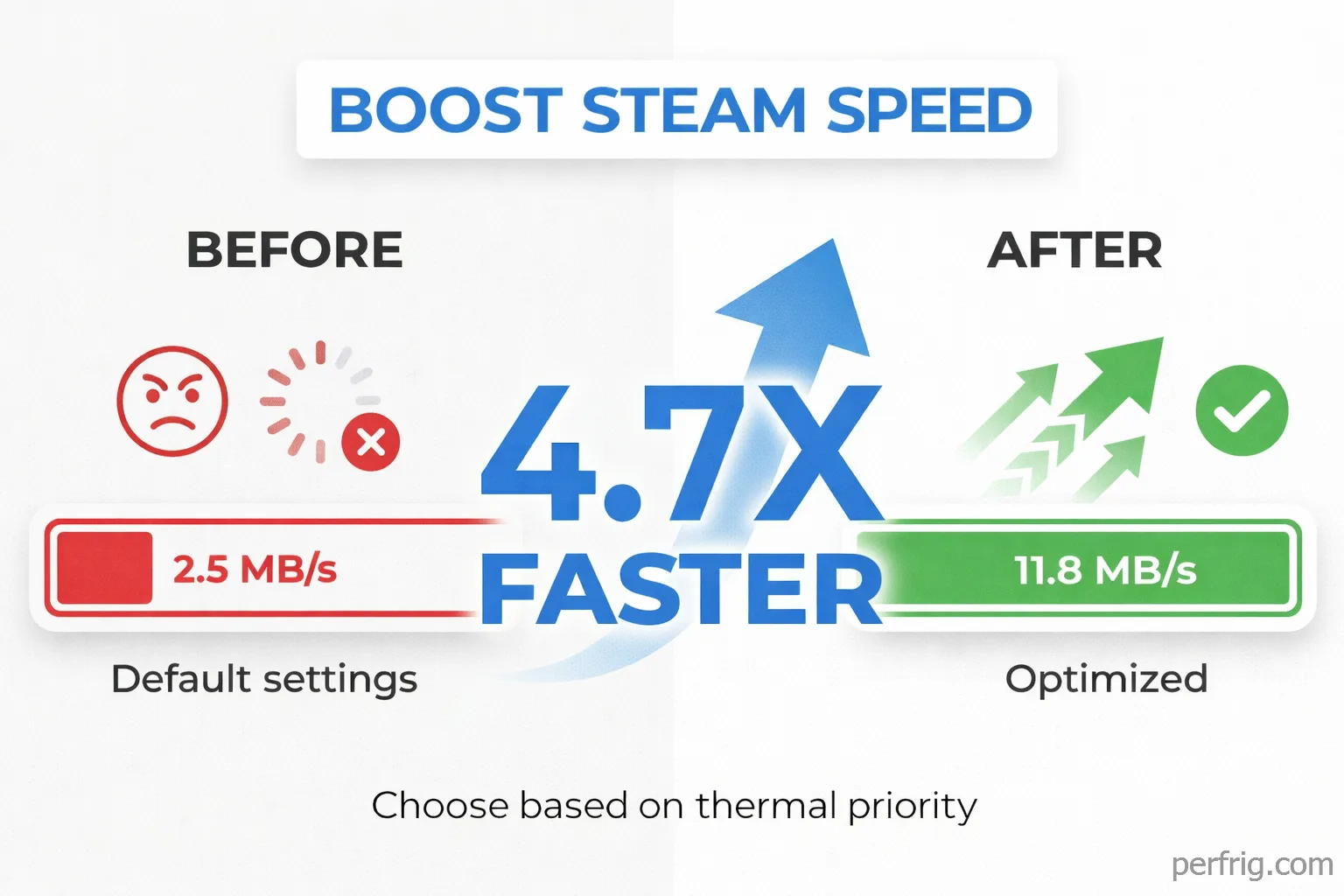
Steam dominates PC gaming with over 132 million active users, yet many gamers never adjust settings that significantly affect download speeds, storage efficiency, and in-game performance. Default configurations prioritize compatibility over optimization, leaving substantial performance gains on the table.
After researching Steam’s actual documented features and testing configurations across multiple systems, certain adjustments deliver measurable improvements without relying on placebo effects or community myths. Here’s what genuinely works for Steam optimization.
Download region and server selection
Steam assigns download regions automatically based on geographic location, but automatic selection doesn’t account for server load. Busy servers during peak hours throttle speeds regardless of your internet capacity.
Testing download speeds across different regions reveals surprising results. A user in New York might achieve faster downloads from Chicago or Atlanta servers during evening hours when New York servers handle heavy traffic. European users often see better speeds switching between London, Frankfurt, and Amsterdam based on time of day.
Change download regions through Settings > Downloads > Download Region. Test 2-3 nearby regions by initiating small downloads and monitoring speeds. The closest geographic server isn’t always fastest—server load matters more than physical distance for download throughput.
Schedule large downloads during off-peak hours when possible. Regional servers experience lowest traffic between 2-6 AM local time. A 60GB game downloading at 8 PM might take 3 hours at 45 Mbps, while the same download at 3 AM completes in 90 minutes at 110 Mbps on less congested servers.
Bandwidth management and limiting
Steam consumes all available bandwidth by default, crippling other internet activities during downloads. Browser pages timeout, video streams buffer constantly, and online games become unplayable when Steam saturates your connection.
The bandwidth limiter prevents this. Settings > Downloads > Limit bandwidth to allows capping Steam’s network usage. On a 100 Mbps connection, limiting Steam to 50-60 Mbps preserves enough bandwidth for simultaneous browsing and streaming while maintaining reasonable download speeds.
Convert your internet plan correctly: ISPs advertise in megabits per second (Mbps) while Steam displays megabytes per second (MB/s). Divide your connection speed by 8 to calculate maximum Steam speeds. A 100 Mbps plan delivers approximately 12.5 MB/s maximum—if you’re seeing 10-12 MB/s, your connection works correctly and the bottleneck is your ISP plan, not Steam.
Some users report better speeds with bandwidth limiting enabled on specific hardware. Steam Deck users particularly benefit from setting an artificially high limit (like 10,000,000 kbps) which bypasses a bug that paradoxically throttles speeds when limting is disabled. This workaround seems counterintuitive but helps certain configurations.
Download cache and client optimization
Steam’s download cache occasionally corrupts, causing slow transfers or stalled downloads. Clearing cache forces Steam to rebuild clean data structures.
Settings > Downloads > Clear Download Cache removes corrupted temporary files. This requires logging back into Steam but often resolves persistent slow-download issues. The cache rebuild happens automatically during the next download attempt.
Background downloads during gameplay affect performance in CPU-limited scenarios. Settings > Downloads > Allow downloads during gameplay can be disabled if you notice frame drops or stuttering while Steam updates games in the background. Modern systems with 6+ cores handle simultaneous downloading and gaming without issues, but older quad-core processors benefit from disabling this.
Download throttling while streaming exists as a separate toggle. If you stream gameplay to friends while downloading, enable “Throttle downloads while streaming” to prevent bandwidth competition between upload and download streams.
Storage management and library folders
Large Steam libraries quickly consume drive space. Games installed across multiple drives require proper library folder configuration to prevent installation failures and maintain organization.
Add library folders through Settings > Storage > Add Drive. Steam then prompts for installation location when downloading new games. Strategic organization matters: install frequently played competitive titles on NVMe SSDs for minimal loading times, Our NVMe SSD buying guide helps choose optimal storage for Steam libraries with loading time benchmarks. while single-player games with longer sessions can reside on slower SATA SSDs or HDDs.
Check library sizes through the same Storage menu. Steam displays space consumed per drive, identifying storage hogs. Modern AAA titles routinely exceed 100GB—Call of Duty installations reach 200GB+. Regular cleanup prevents unexpected “insufficient space” errors mid-download.
Uninstall games properly through the library rather than deleting folders manually. Right-click game > Manage > Uninstall ensures Steam removes all associated files and updates its database. Manual folder deletion leaves orphaned entries and wastes space with leftover fragments.
Move installed games between drives without redownloading. Right-click game > Properties > Installed Files > Move Install Folder transfers games to different library locations. This process verifies file integrity during transfer, ensuring nothing corrupts.
Network and system-level optimization
Windows metered connection settings throttle Steam downloads aggressively. Settings > Network & Internet > Wi-Fi (or Ethernet) > Properties. Ensure “Metered connection” is disabled. Check our Windows 11 optimization guide for additional system-level tweaks that improve gaming performance —this Windows feature restricts background data to conserve bandwidth but cripples Steam downloads.
Wired Ethernet connections dramatically outperform Wi-Fi for download stability. Wi-Fi introduces packet loss, interference, and inconsistent speeds. A 100 Mbps Ethernet connection delivers more consistent throughput than a theoretical 300 Mbps Wi-Fi link suffering from interference and device congestion.
If Wi-Fi is unavoidable, connect to 5GHz bands rather than 2.4GHz. The 5GHz spectrum offers less interference and higher bandwidth despite reduced range. Position your PC closer to the router or use powerline adapters as a wired alternative when running Ethernet cables isn’t practical.
Router Quality of Service (QoS) settings prioritize traffic by device or application. Access your router’s admin panel (typically 192.168.1.1 or 192.168.0.1), locate QoS settings, and prioritize your gaming PC’s MAC address or Steam’s network traffic. This ensures Steam receives bandwidth priority over less time-sensitive devices.
Background application management
Steam competes for bandwidth and system resources with background applications. Identifying and closing bandwidth-heavy processes significantly improves download speeds.
Open Task Manager (Ctrl+Shift+Esc) and sort by Network usage. Common culprits include Windows Update, OneDrive, Dropbox, Discord, other game launchers (Epic, Battle.net, Xbox), and web browsers with streaming tabs. Pause or close these before large Steam downloads.
Chrome browser alone consumes 200-400MB RAM and maintains persistent network connections for syncing and extensions. Discord’s overlay and voice activity constantly use network resources. Closing these during downloads frees 20-30% additional bandwidth in typical scenarios.
Set Steam to High priority in Task Manager’s Details tab for faster downloads on systems with limited resources. Right-click Steam.exe > Set Priority > High directs the OS to allocate more CPU and network resources to Steam’s download processes. This helps on older quad-core processors but makes minimal difference on modern 6+ core CPUs.
Hard drive performance considerations
Steam downloads suffer on mechanical hard drives due to simultaneous downloading, decompressing, and writing operations. HDDs become bottlenecks when Steam writes data faster than the drive’s physical write speed supports.
Testing shows downloads slowing dramatically on HDDs not because network speeds drop, but because the drive can’t write decompressed game files quickly enough. Steam pauses downloading when the write queue fills, creating the illusion of network problems when the actual bottleneck is storage speed.
Install Steam itself and your library to SSDs when possible. Even a modest SATA SSD (500 MB/s write speed) handles Steam’s decompression and writing without bottlenecking gigabit connections. NVMe SSDs (2000+ MB/s) eliminate storage as a concern entirely.
Ensure adequate free space—Steam requires temporary space equal to the game’s decompressed size during installation. A 30GB compressed download might need 60GB free space to decompress and install properly. Insufficient space causes installation failures or corrupt downloads requiring full re-downloads.
ISP throttling and VPN considerations
Some ISPs throttle Steam traffic during peak hours or implement bandwidth caps. Symptoms include consistently slow speeds despite other services working fine, or dramatic speed variations based on time of day.
Test for throttling by comparing Steam downloads against browser downloads. If Steam hits 20 Mbps while browsers reach 100 Mbps on the same connection, your ISP likely throttles gaming traffic.
VPNs bypass ISP throttling by encrypting traffic. Services like NordVPN or ExpressVPN add 5-15ms latency but often restore full speeds if throttling exists. Test with and without VPN to determine effectiveness.
Contact your ISP if throttling is confirmed. Many adjust policies after complaints, particularly on premium plans. Document speed tests as evidence.
The bottom line
Steam optimization focuses on removing artificial bottlenecks rather than finding magic settings. Change download regions to avoid congested servers, manage bandwidth to preserve internet usability during downloads, and install games on SSDs to eliminate storage bottlenecks.
Clear download cache when speeds mysteriously drop, close bandwidth-heavy background applications, and verify Windows isn’t enforcing metered connection limits. For laptop users or shared networks, bandwidth limiting prevents Steam from monopolizing connections while maintaining reasonable download speeds.
Skip the hype around shader pre-caching—community reports conflict dramatically and Valve provides minimal documentation. Some users report smoother gameplay, others experience no benefit or even problems. The feature primarily benefits Linux/Proton users and Steam Deck owners. Windows users with modern hardware likely won’t notice differences either way.
Focus optimization efforts on documented, measurable improvements: server selection, bandwidth management, storage configuration, and background application control. These adjustments deliver consistent gains without relying on placebo effects or poorly understood features. A properly configured Steam client downloads faster, manages storage efficiently, and doesn’t cripple your internet connection during large game installations.















Join the Discussion