
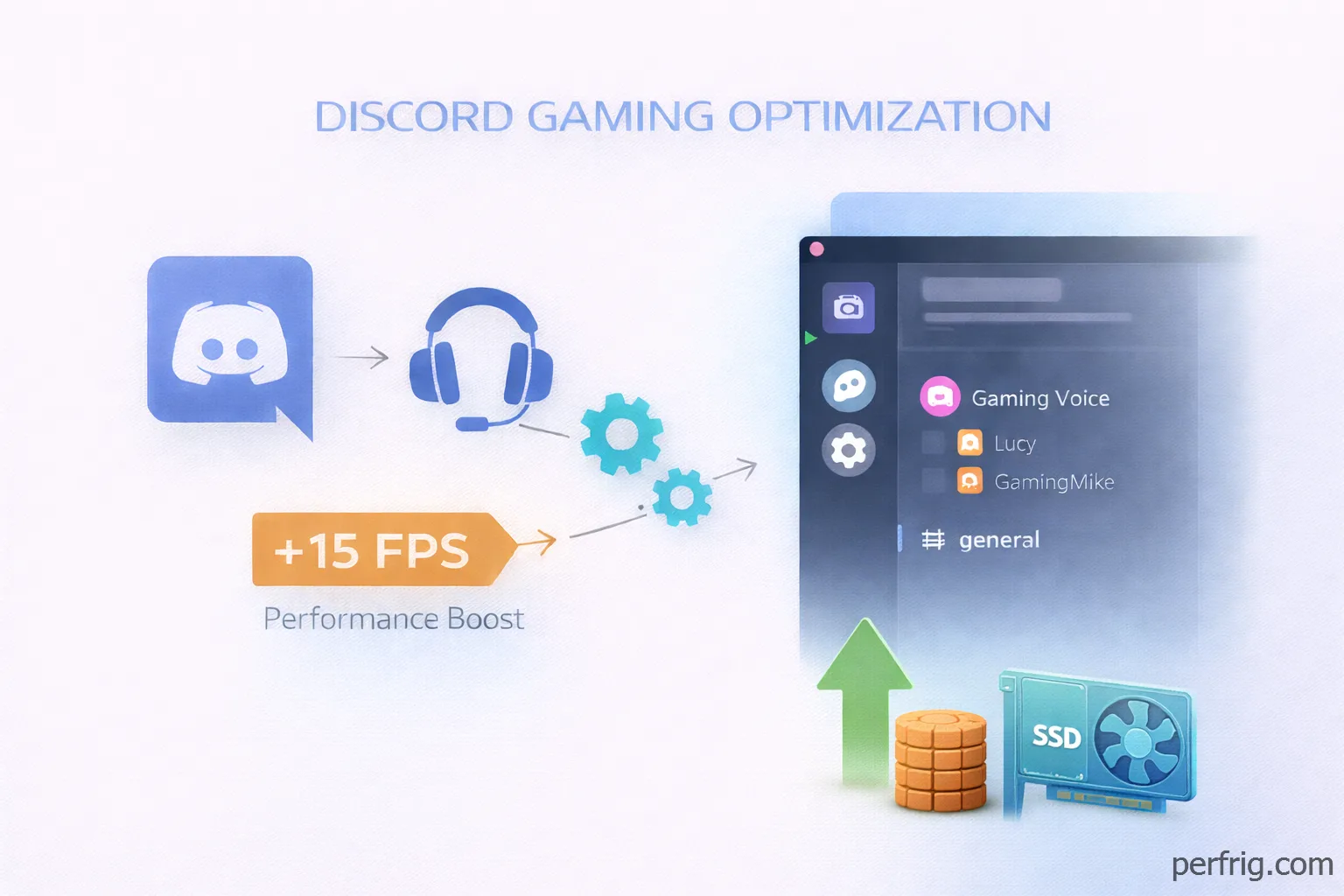
Here’s the thing about Discord—basically everyone uses it while gaming, but most people don’t realize it’s eating 5-15 FPS in the background. Honestly, a few simple tweaks can make a noticeable difference without sacrificing voice quality or functionality. Let’s break down which settings actually impact performance and which ones are just placebo.
Hardware acceleration: the biggest setting
This one’s tricky because the right answer depends on your system. Hardware acceleration offloads Discord’s visual processing from your CPU to your GPU. Sounds good in theory, but if your GPU is already maxed out running games, adding Discord to the workload causes stuttering and frame drops.
When to disable it: If you’re playing GPU-intensive games like Cyberpunk, Red Dead Redemption 2, or anything with ray tracing enabled, turn hardware acceleration off. Your GPU needs every bit of power for the game. Testing shows disabling it can recover 8-12 FPS in demanding titles on mid-range cards like the RTX 4060 Ti or RX 7700 XT.
When to keep it on: If you’re playing older or CPU-bound games like CS2, Valorant, or League of Legends where your GPU isn’t working hard, hardware acceleration actually helps. It takes load off your CPU which these games hammer pretty hard.
To toggle it, go to User Settings (gear icon) → Advanced → Hardware Acceleration. You have to restart Discord after changing this for it to take effect.
The overlay problem
Discord’s in-game overlay is convenient for seeing who’s talking without alt-tabbing, but it comes with a cost. The overlay injects itself into your game’s rendering pipeline which breaks technologies like G-Sync and FreeSync in borderless windowed mode. It also adds 20-40 FPS overhead in some games.
Real talk though, if you’re in voice chat you don’t need to see animations and indicators overlaid on your game. The audio cues work fine for knowing who’s talking. Disabling the overlay is one of the easiest ways to claw back performance.
Go to User Settings → Game Overlay → Toggle off “Enable in-game overlay.” You’ll still get full voice functionality, you just won’t see the Discord UI while gaming.
Voice and video settings that matter
Discord’s voice processing features sound useful but they’re CPU-intensive. Noise suppression in particular can use 5-10% of your CPU depending on the setting.
Krisp vs Standard: Krisp is Discord’s AI-powered noise suppression and it’s genuinly impressive at blocking background noise. The problem is it requires significant CPU resources. If you’re on a 6-core or 8-core CPU and not hitting 100% usage, Krisp is fine. But if you’re already CPU-limited, switch to Standard noise suppression which uses way less processing power.
Echo cancellation: This one’s worth keeping enabled. The performance cost is minimal and it prevents that annoying feedback loop when someone’s audio leaks into their mic.
Automatic gain control: This adjusts your mic volume automatically. It uses some CPU but not enough to worry about. Keep it on unless you’re willing to manually manage your mic levels.
Find these in User Settings → Voice & Video → Voice Processing.
Video codec settings
For video calls or screen sharing, enable hardware acceleration for the video codec. Go to User Settings → Voice & Video → Advanced → Enable “H.264 Hardware Acceleration.” This uses your GPU’s dedicated encoder which doesn’t impact gaming performance.
Reduced motion and animations
Discord animates everything by default—emojis, messages, UI elements. These animations require constant CPU and GPU cycles. On a powerful system you won’t notice, but on budget builds or laptops every bit helps.
Enable “Reduced Motion” in User Settings → Accessibility. This disables most animations while keeping Discord functional. You’ll still see animated emojis when you hover over them, but they won’t auto-play in chat.
Also disable auto-play for GIFs and embedded videos in User Settings → Text & Images → Uncheck “Play GIFs when Discord is focused” and “Auto-play GIFs on hover.” Busy servers with tons of GIFs can become surprisingly resource-heavy.
Quality of Service issues
There’s a setting called “Enable Quality of Service High Packet Priority” that sounds helpful but causes problems. Many routers misinterpret this setting and create massive lag spikes—we’re talking 5000ms+ in some cases.
Disable it in User Settings → Voice & Video → Advanced → Turn off “Enable Quality of Service High Packet Priority.” If you experience high ping or lag spikes during voice calls, this is usually the culprit.
Cache clearing
Discord stores temporary files that can become corrupted over time causing UI freezing and sluggish performance. Clearing the cache fixes this and it’s completely safe—you won’t lose messages or settings.
Close Discord completely, then navigate to %appdata%\discord in File Explorer. Delete these folders: Cache, Code Cache, and GPUCache. Restart Discord and it’ll rebuild fresh cache files. Do this every few months or whenever Discord starts feeling slow.
Streamer mode and activity status
Streamer mode adds processing overhead checking what to hide. If you’re not streaming, disable it in User Settings → Streamer Mode.
Activity status showing your current game requires constant process monitoring. Turn it off in User Settings → Activity Privacy if you don’t care about broadcasting what you’re playing.
The network side
Discord competes with your game for bandwidth. If you’re on Wi-Fi with limited upload speed (most ISPs give you way more download than upload), voice quality suffers during intense moments when the game needs bandwidth too.
Ethernet cables solve 90% of voice quality issues. If you’re serious about competitive gaming and still using Wi-Fi, that’s your problem. A 10-foot ethernet cable costs like $8 and makes a massive difference in connection stability.
Testing your changes
Monitor FPS after tweaking settings using MSI Afterburner or Steam’s FPS counter. If disabling hardware acceleration didn’t help, try re-enabling it—system configurations vary. Change one setting at a time and verify the impact.
Bottom line
Discord doesn’t have to murder your FPS. Disable hardware acceleration if you’re GPU-limited, turn off the overlay, switch from Krisp to Standard noise suppression, and enable reduced motion. These changes typically recover 10-20 FPS in demanding games without sacrificing voice quality.
The goal isn’t making Discord unusable—it’s removing features you don’t need during gaming sessions. You can always re-enable things when you’re not gaming if you miss them. But honestly, most people find they don’t need the overlay or animated emojis when they’re trying to clutch a round.







Join the Discussion