

Default GPU settings are honestly pretty terrible for gaming. Like you install your drivers and everything works but you’re probably leaving 15-20% performance just sitting there unused because manufacturers optimize for general use not specifically gaming.
The thing about GPU defaults is they prioritize compatibility and visual quality over raw framerates which makes sense from their perspective but not really for us right. They want things to work out of the box for everyone including people doing video editing or 3D rendering or whatever, gaming is just one use case.
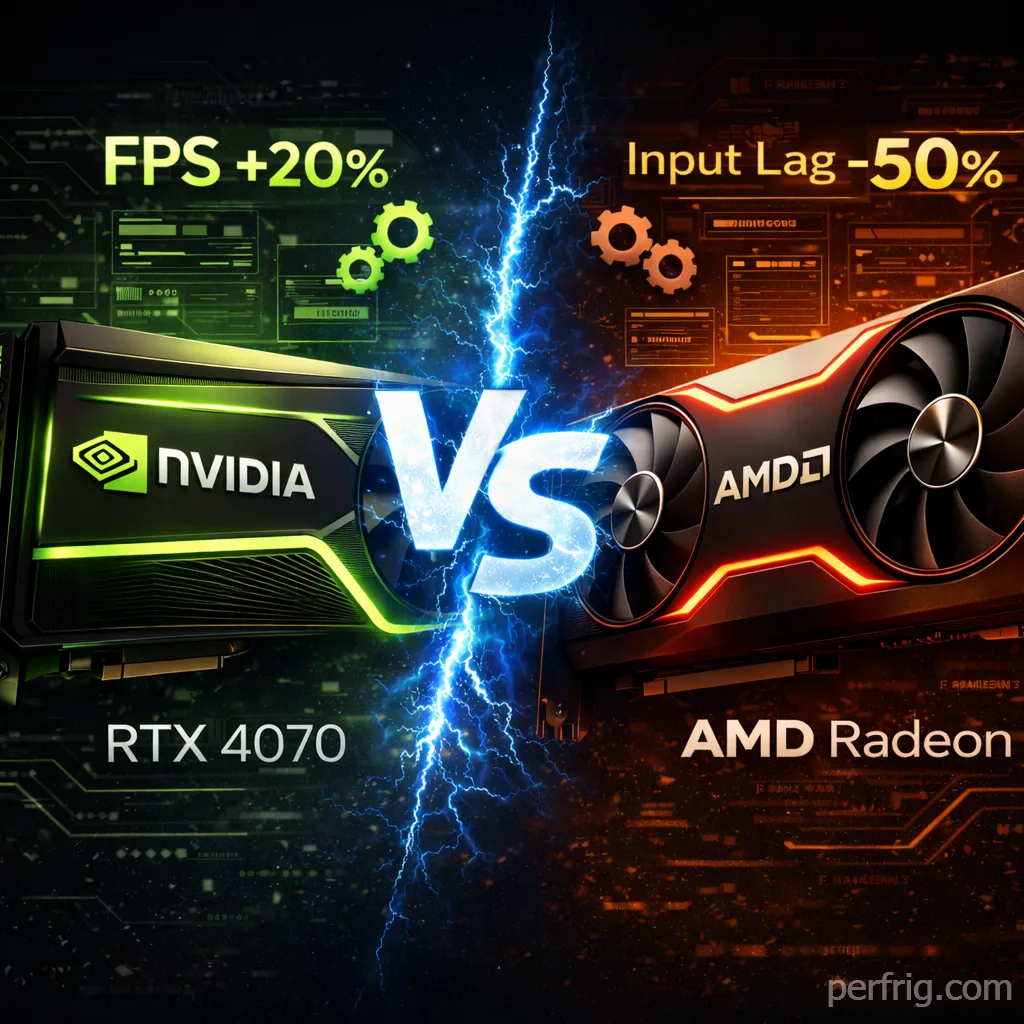
In this guide we’re covering both NVIDIA and AMD because while the approach is similar the actual settings have completely different names and the control panels look nothing alike. Whether you’re running an RTX card or one of AMD’s Radeon GPUs these tweaks should get you better performance without making games look worse in any way that actually matters during gameplay.
What you need before starting
Your graphics card obviously, either NVIDIA or AMD. Latest drivers installed, if you haven’t updated in months do that first because sometimes driver updates alone give you significant gains especially in newer games. Administrator access to your PC and maybe 15 minutes to work through everything.
Seriously though update your drivers if they’re old. Performance improvements from driver updates can be massive.
NVIDIA control panel tweaks
Right-click your desktop and open the NVIDIA control panel, it’s probably the most important performance tool for GeForce cards. Navigate to manage 3D settings and you’ll see two tabs, global settings and program settings.
Start with global because that establishes your baseline for everything then you can tweak individual games later if specific titles need different treatment.

Settings that actually impact performance
Not everything in that control panel matters for framerates honestly. Some settings are just compatibility options or features most people don’t use. Here’s what you should actually change:
Image scaling should be off because DLSS or in-game scaling implementations are way better than whatever NVIDIA’s doing at the driver level.
Ambient occlusion off let games handle this themselves, forcing it through the driver just adds overhead for no real benefit.
Low latency mode to ultra and this is probably the biggest setting for competitive gaming. It dramatically reduces input lag by limiting how many frames sit in queue waiting to be rendered. If you don’t have an RTX card set it to on instead of ultra but definitely don’t leave it off.
Power management mode prefer maximum performance this might be the single most important setting here. It forces your GPU to stay at maximum clock speeds instead of constantly ramping up and down which eliminates those annoying micro-stutters you get when the card is adjusting power states.
Texture filtering quality high performance the visual difference is basically invisible unless you’re doing side by side comparisons but you gain anywhere from 5-10 FPS in texture heavy games. It’s free performance.
Threaded optimization on lets the driver use multiple CPU cores which modern games do anyway so this just makes sense to enable.
Vertical sync off v-sync caps framerates at your monitor refresh rate and adds input lag. Turn it off unless screen tearing really bothers you, if you have G-SYNC use that instead or enable v-sync in-game rather than forcing it through the driver.
Virtual reality pre-rendered frames set to 1 reduces input lag by limiting how many frames the CPU prepares ahead of time before the GPU renders them.
Everything else you can pretty much leave at application-controlled or whatever the default is. Those settings either don’t impact performance significantly or games handle them better than the driver does anyway.
Game profiles for competitive stuff
For competitive games like Valorant or CS2 or Call of Duty you want individual profiles. Click program settings tab, add your game’s exe file (you’ll need to browse to where it’s installed) and set these specifically:
Power management maximum performance, low latency mode ultra, texture filtering high performance.
This ensures your competitive titles get absolute priority for responsiveness over everything else running on your system.
AMD adrenalin software settings
AMD’s approach is similar conceptually but the software looks completely different and settings have different names. Open AMD Software (they call it Adrenalin Edition now) and navigate to the graphics tab.

Key AMD settings
Radeon Anti-Lag enabled this is AMD’s equivalent to NVIDIA’s low latency mode, reduces input lag noticeably in supported games.
Radeon Boost enabled but only for fast-paced competitive games. This feature dynamically lowers resolution during quick movements to maintain framerates which works great in shooters but looks weird in slow-paced games where you’ll notice the resolution changes.
Wait for Vertical Refresh always off same concept as v-sync on NVIDIA, turn it off for maximum performance.
Texture Filtering Quality performance just like NVIDIA prioritize performance over quality here, the visual difference is minimal but the FPS gain is real.
Surface Format Optimization enabled optimizes how textures are stored in memory for better performance with basically no visual impact.
Shader Cache AMD optimized stores compiled shaders so you don’t get stuttering when loading new areas or seeing effects for the first time.
Radeon Image Sharpening enabled at around 80% this is actually useful unlike some other post-processing effects. It sharpens the image slightly which makes lower resolution scaling look better if you’re using FSR or dropping resolution for performance.
Leave anti-aliasing and anisotropic filtering at application settings because games typically handle these better than forcing them through the driver.
AMD game profiles
Same concept as NVIDIA, create custom profiles for your competitive games with anti-lag enabled, boost enabled and texture filtering set to performance mode. This gives those games priority treatment.
DLSS and FSR upscaling tech
Both NVIDIA’s DLSS and AMD’s FSR are honestly game changers for performance and you should use them whenever they’re available in a game.

DLSS on NVIDIA cards:
Quality mode is great for single-player games at 1440p or 4K where you want best image quality with a solid FPS boost. Probably 40-50% better performance with minimal quality loss.
Balanced mode is the sweet spot for most situations, good image quality with strong performance gains. This is what most people should use.
Performance mode is for 4K gaming or when you’ve got ray tracing enabled and desperately need more frames. Image quality takes a small hit but framerates jump significantly.
Ultra performance is basically for 8K gaming which nobody’s really doing so you can ignore this unless you’re running some ridiculous multi-monitor setup.
FSR on any GPU:
FSR quality gives best image quality, use this if you only need modest FPS improvement and want to maintain visual fidelity.
FSR balanced is recommended for most cases, good balance between quality and performance gains. This is probably where you should start.
FSR performance maxes out FPS gains but image quality degrades more noticeably. Still playable though especially if you’re struggling to hit 60 FPS.
FSR ultra performance is for really struggling systems, image quality takes a significant hit but framerates improve dramatically.
Both technologies work incredibly well these days honestly. DLSS has a slight edge in image quality because of the AI training but FSR is more widely supported and works on any GPU not just NVIDIA cards.
Performance improvements you can expect
Testing across different hardware shows pretty consistent gains when these settings are applied properly.
Competitive FPS games typically see 15-25% higher framerates which is huge. That’s the difference between 130 FPS and 160 FPS in something like Valorant or CS2, absolutely massive for competitive play where every frame matters.
AAA single-player titles show 10-20% gains on average but more importantly the 1% low framerates improve significantly which means less stuttering and more consistent performance overall. Those dips where framerate tanks briefly become less severe.
Open-world games benefit from roughly 12-18% better performance with smoother texture streaming. Those annoying hitches when you enter new areas mostly disappear or at least become less noticeable.

Exact gains depend on your hardware and which games you play obviously but these ranges are pretty typical across the board.
Common mistakes people make
NVIDIA users sometimes enable DSR factors thinking it improves image quality but it just renders games at higher resolution internally which absolutely tanks performance. Don’t use this unless you specifically understand what it does and want that feature.
Setting max framerate too low artificially caps your performance for no reason. Leave it off or set it exactly to your monitor’s refresh rate, not lower than that.
AMD users often enable Radeon Boost in slow-paced single-player games where the dynamic resolution changes are super noticeable and annoying. Only use boost for fast competitive titles where you won’t notice the resolution scaling.
Frame Rate Target Control on AMD limits your framerate which defeats the whole purpose of optimizing for performance. Keep this disabled unless you have a specific reason to cap frames.
Both NVIDIA and AMD users forget to actually click apply after changing settings which is honestly the most common mistake. Make your changes, scroll down and hit that apply button or literally nothing saves.
Keeping things optimized long term
GPU drivers update frequently and sometimes they reset settings or change what’s optimal. Check for updates weekly especially if you play new releases because driver updates often include game-specific optimizations.
If you start getting weird stuttering or performance issues try clearing your shader cache. For NVIDIA there’s an option in control panel settings, for AMD you can do it through the software or manually delete the cache folder.
Monthly you should review game-specific profiles especially if you’ve added new games to your library and consider doing a clean driver install if you’re having persistent problems that troubleshooting doesn’t fix.
Don’t just configure these once and forget about them. Driver updates change things and new games might need different settings than what works for your existing library.
Final thoughts
These GPU optimizations work regardless of whether you’re running high-end hardware or a budget build. The key is understanding which settings genuinely impact performance versus which are just placebo or marketing features that don’t do much.
Start with global settings for your GPU brand, test your games to measure the improvement (use the in-game FPS counter or something like MSI Afterburner) and then create individual profiles for competitive titles where every single frame matters.
Most gamers never touch these settings and then wonder why their performance isn’t great despite having decent hardware. Spending 15 minutes in the control panel can legitimately transform your gaming experience without costing anything beyond your time.
The performance is already there in your GPU, you just need to configure the software properly to actually use it.