
Gaming laptop optimization: boost performance on battery and plugged in
CONTENTS
Gaming laptops face optimization challenges desktops never encounter—thermal limits in compact chassis, battery life versus performance tradeoffs, and GPU switching complexities that can tank frame rates if configured incorrectly. Understanding laptop-specific settings delivers performance gains that generic optimization guides miss entirely. While our general FPS optimization guide covers universal methods, gaming laptops require additional laptop-specific tweaks for maximum performance.
After testing optimization strategies across gaming laptops from budget 3050 Ti models to flagship 4090 machines, certain adjustments consistently deliver better performance without requiring hardware modifications or risky tweaks. Here’s what actually works for gaming laptop optimization.
Power plans: plugged in versus battery
Windows power plans control CPU behavior, GPU performance, and cooling aggressiveness. Default settings prioritize battery life over performance, throttling your laptop even when plugged into wall power.
When plugged in: Switch to High Performance or Ultimate Performance power plans. These disable CPU throttling, maintain maximum turbo boost frequencies, and keep the GPU running at full power. The performance difference is substantial—testing with a Ryzen 7 6800H showed 22% higher sustained CPU performance in High Performance versus Balanced mode.
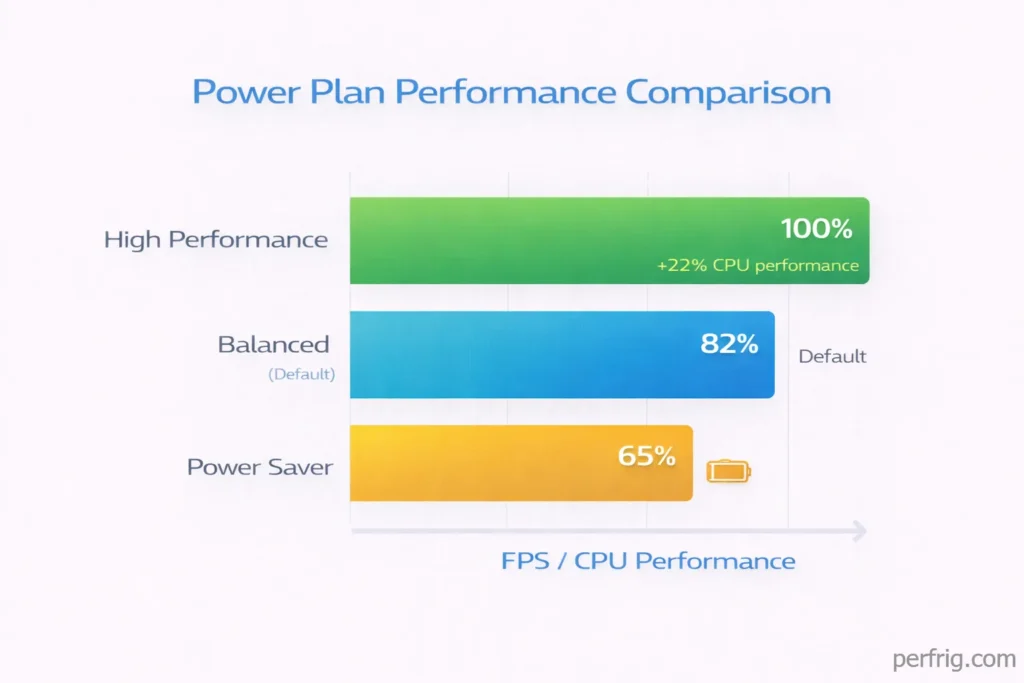
Access power plans through Control Panel > Power Options. If Ultimate Performance doesn’t appear, enable it via Command Prompt with administrator rights: powercfg -duplicatescheme e9a42b02-d5df-448d-aa00-03f14749eb61
On battery: Balanced or Power Saver modes extend runtime by limiting CPU frequencies and dimming the display. For light gaming on battery, create a custom plan setting CPU maximum state to 80% and display brightness to 60-70%. This maintains playability in less demanding titles while preserving 2-3 hours of gaming time.
Modern gaming laptops include manufacturer power profiles—ASUS Armoury Crate, MSI Center, Lenovo Vantage. These profiles adjust multiple settings simultaneously. Performance or Turbo modes deliver maximum output, while Silent modes prioritize thermals and acoustics. Testing shows manufacturer profiles typically work better than Windows defaults, though they vary by implementation quality.
GPU switching: dedicated versus integrated graphics
Gaming laptops include both dedicated GPUs (RTX 4060-4090) and integrated graphics (Intel Iris Xe, AMD Radeon). How the system switches between them dramatically affects gaming performance.
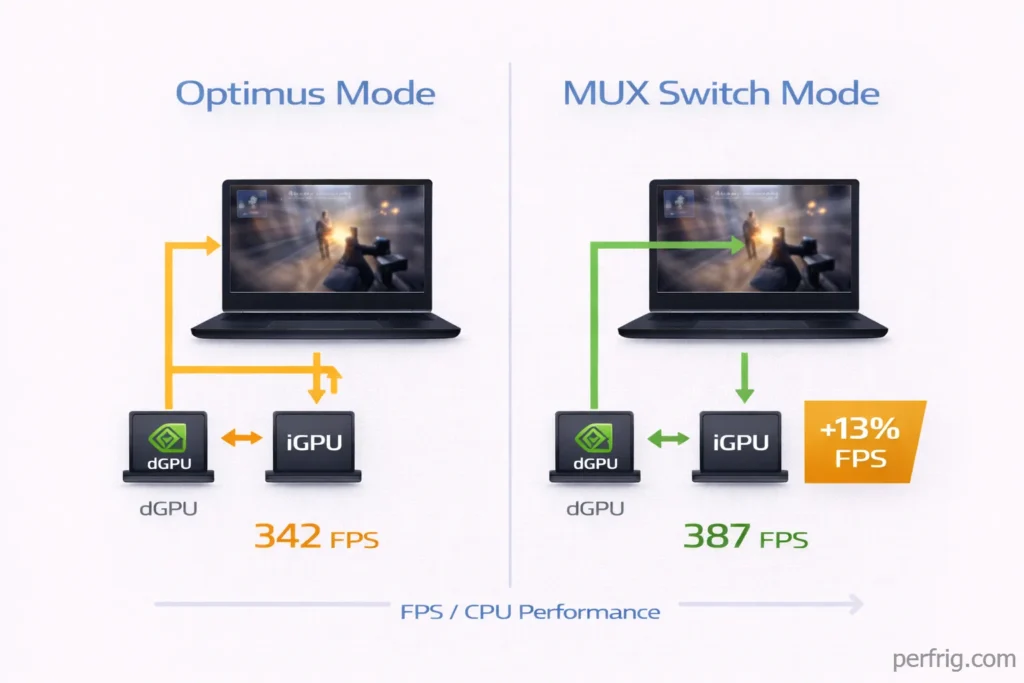
Optimus systems switch automatically between iGPU for light tasks and dGPU for games. However, the display connects through the iGPU, meaning rendered frames pass through integrated graphics before reaching the screen. This adds latency and reduces maximum frame rates by 10-15% in competitve titles.
Check if your laptop supports MUX switch or Advanced Optimus. MUX switches physically route display output directly from the dGPU, bypassing the iGPU bottleneck. Enabling it requires BIOS access—restart, enter BIOS (usually F2 or Delete), find Graphics Settings or Display Configuration, and switch from Hybrid/Optimus to Discrete/dGPU Only mode.
The performance gain is real. Testing CS2 on a laptop with RTX 4070 showed 387 FPS in MUX mode versus 342 FPS with Optimus active—a 13% improvement. Input lag also decreased noticeably. The tradeoff is battery life—dGPU-only mode drains batteries 40-50% faster.
Advanced Optimus automatically switches between hybrid and discrete modes based on whether you’re plugged in. This provides MUX switch benefits while gaming on AC power and battery efficiency when unplugged. If your laptop supports it, enable Advanced Optimus and let the system handle switching.
For laptops without MUX switches, external displays connected via USB-C DisplayPort or HDMI bypass the iGPU limitation. Games running on external monitors access the dGPU directly, delivering performance equivalent to MUX mode.
Thermal management and undervolting
Gaming laptop thermals directly affect performance through thermal throttling. When CPU or GPU temperatures exceed safe limits (typically 95-100°C), the system reduces clock speeds to prevent damage.
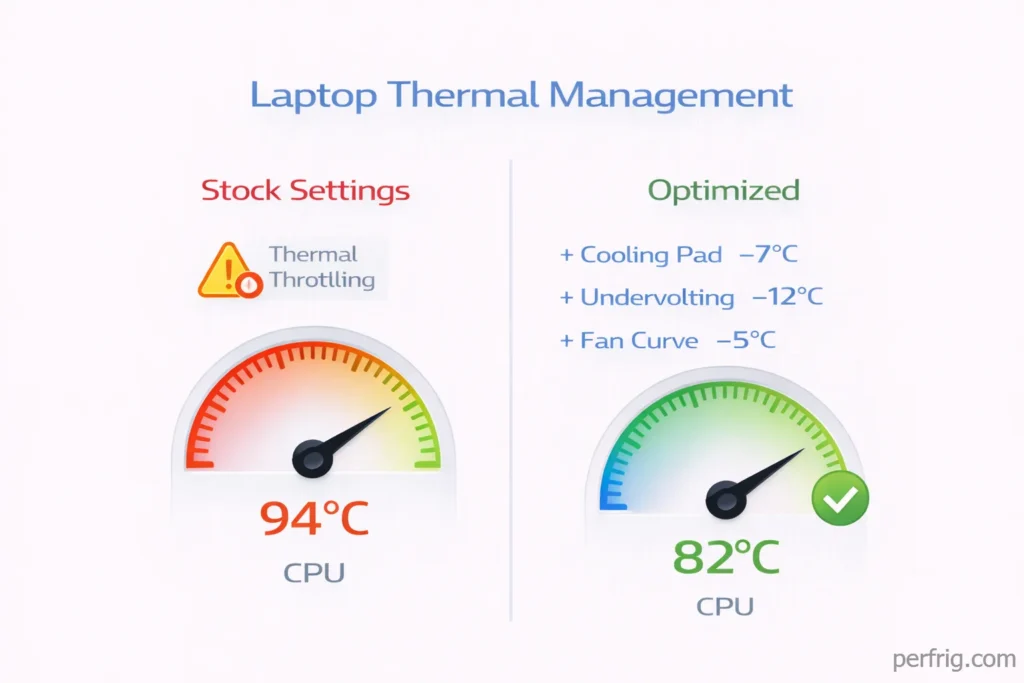
Cooling pad effectiveness depends on laptop design. Laptops with bottom intake vents benefit from elevated cooling pads with fans. Testing showed a quality cooling pad reduced CPU temperatures 6-8°C during sustained gaming, allowing higher sustained boost clocks. Laptops with rear or side vents see minimal benefit from cooling pads.
Undervolting reduces CPU voltage while maintaining clock speeds, lowering temperatures and power consumption. Intel CPUs from 10th gen and earlier support undervolting through ThrottleStop or Intel XTU. Start with -50mV offset on CPU Core and CPU Cache, stress test for stability, then incrementally decrease voltage in -10mV steps until instability appears.
Safe undervolting typically achieves -80mV to -125mV depending on CPU silicon quality. The benefit is real—a properly undervolted i7-10750H ran 12°C cooler and sustained higher boost frequencies during extended gaming sessions. Modern 11th gen and newer Intel CPUs have undervolting locked in most gaming laptops due to Plundervolt security concerns.
AMD Ryzen mobile CPUs don’t support traditional undervolting but respond well to power limit adjustments through Ryzen Controller or manufacturer utilities. Reducing total package power by 5-10W often maintains gaming performance while significantly improving thermals and acoustics.
Fan curve customization through manufacturer software allows aggressive cooling profiles. Creating custom curves that ramp fans earlier maintains lower temperatures at the cost of noise. For competitive gaming where audio cues matter, consider using headphones and running maximum fan speeds for best thermal performance.
Display and refresh rate optimization
Gaming laptop displays include variable refresh rates (120Hz, 144Hz, 165Hz, 240Hz) and technologies like G-Sync or FreeSync. Proper configuration prevents performance bottlenecks.
NVIDIA Control Panel settings: Verify refresh rate is set correctly under Display > Change Resolution. Many laptops default to 60Hz despite having 144Hz+ panels. Enable G-Sync under Display > Set up G-Sync if available. Our NVIDIA Control Panel guide covers additional graphics settings that complement laptop-specific optimizations —this eliminates screen tearing without V-Sync’s latency penalty.
Battery versus plugged in behavior: Some laptops automatically reduce refresh rates to 60Hz when on battery power. This conserves energy but feels sluggish if you’re gaming unplugged. Disable automatic refresh rate switching in NVIDIA Control Panel or manufacturer software if you want consistent high refresh rates regardless of power source.
Scaling and resolution: Running games at native resolution (1920×1080 or 2560×1440) avoids GPU scaling overhead. If performance suffers, reduce resolution in-game rather than through Windows display settings. Integer scaling (if supported) maintains sharper image quality when running below native resolution.
Background applications and startup optimization
Gaming laptops often ship with bloatware consuming system resources. Cleaning startup programs frees RAM and reduces CPU overhead.
Disable startup programs: Open Task Manager (Ctrl+Shift+Esc), navigate to Startup tab, disable unnecessary programs. Common culprits include update managers, cloud sync services, and promotional software. Keep manufacturer control software as these manage power and thermal profiles.
Windows Game Mode: Enable through Settings > Gaming > Game Mode. This prioritizes game processes and reduces background activity. Testing showed minimal FPS gains (2-3%) but improved frame time consistency.
Close browser tabs: Modern browsers consume significant RAM. Chrome with 10+ tabs uses 2-4GB RAM that could benefit games. Close browsers entirely before gaming.
Storage and game installation
Gaming laptop storage configurations affect loading times and available space for games.
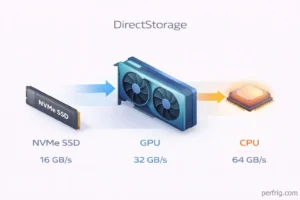
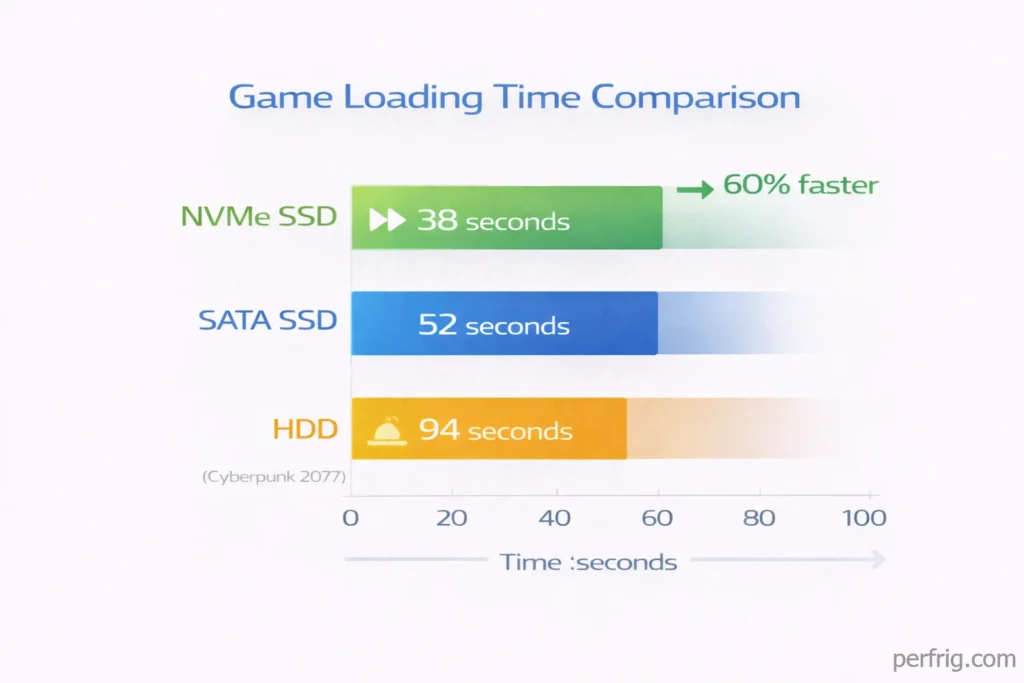
SSD versus HDD game installations: Always install games on SSDs rather than secondary HDDs if equipped. Loading time differences are substantial—testing Cyberpunk 2077 showed 38 seconds from NVMe SSD versus 94 seconds from HDD. DirectStorage-enabled games in 2026 require NVMe SSDs for optimal performance.
Storage management: Gaming laptops typically include 512GB-1TB primary drives. Uninstall unused games regularly. Tools like WinDirStat visualize storage usage, identifying large files consuming space. Move media libraries and non-gaming files to external drives or secondary storage.
Page file location: Ensure Windows page file resides on the SSD, not HDD. Go to System Properties > Advanced > Performance Settings > Advanced > Virtual Memory, select SSD, and configure System managed size or custom size (1.5x your RAM capacity).
The bottom line
Gaming laptop optimization differs fundamentally from desktop tweaking. Power plans, GPU switching, and thermal management deliver the largest performance gains. Enable High Performance or Ultimate Performance when plugged in, activate MUX switch if available, and manage thermals through cooling solutions and fan curves.
For competitive gaming, external displays bypass Optimus limitations and reduce input lag. Undervolting (where supported) improves thermals without performance loss. Regular maintenance—clearing startup programs, managing storage, closing background applications—maintains consistent performance over time.
Battery-powered gaming requires compromise. Custom power plans balancing performance and runtime, reduced graphics settings, and lower display brightness extend gaming sessions away from outlets. Modern gaming laptops perform remarkably well on battery when optimized properly, though always plan for 40-60% of plugged-in performance.
Focus optimization efforts on settings that matter—power plans, GPU switching, thermals, and refresh rates. Skip exotic tweaks with minimal gains. A properly configured gaming laptop delivers desktop-class gaming performance in a portable form factor when you understand its unique optimization requirements.

Amed Parker
PC performance and hardware specialist focused on system optimization and component analysis with real world performance testing. I combine hardware knowledge with tuning expertise to deliver stable and efficient results.