
How to fix lag in Arknights: Endfield
CONTENTS
Graphics settings, driver fixes, and system tweaks that eliminate stuttering and improve FPS
Arknights: Endfield runs on Unreal Engine 5, delivering impressive visuals but demanding significant hardware resources. Players frequently encounter FPS drops during combat sequences, stuttering when exploring open areas, and ocasional freezes that disrupt gameplay flow. Understanding which settings actually impact performance—and which system-level issues cause problems—helps eliminate lag without sacrificing visual quality unnecessarily. The game provides built-in monitoring tools that identify bottlenecks, making optimization more straightforward than trial-and-error adjustments.
Understanding lag types in Endfield
Not all performance issues manifest identically. FPS drops create choppy visuals where frame rates fall below comfortable thresholds, typically occurring during intensive combat or in densely populated areas. This stems from GPU or CPU limitations struggling to render scenes at acceptable speeds.
Stuttering presents differently—brief freezes or hitches interrupting otherwise smooth gameplay. This usually indicates corrupted game files, driver conflicts, or background processes interfering with game execution. Memory leaks can cause stuttering after extended play sessions as RAM fills with improperly managed assets.
Network lag creates a third category where inputs feel delayed despite smooth visuals. Your character responds slowly to commands, attacks execute late, and interactions feel unresponsive. This reflects server communication problems rather than local hardware limitations.
The game includes Device Load and Estimated GPU Memory Usage indicators in the graphics menu. These bars display current system stress—keeping both below three bars prevents most performance issues. When either spikes higher, problems become likely.
Graphics settings that matter
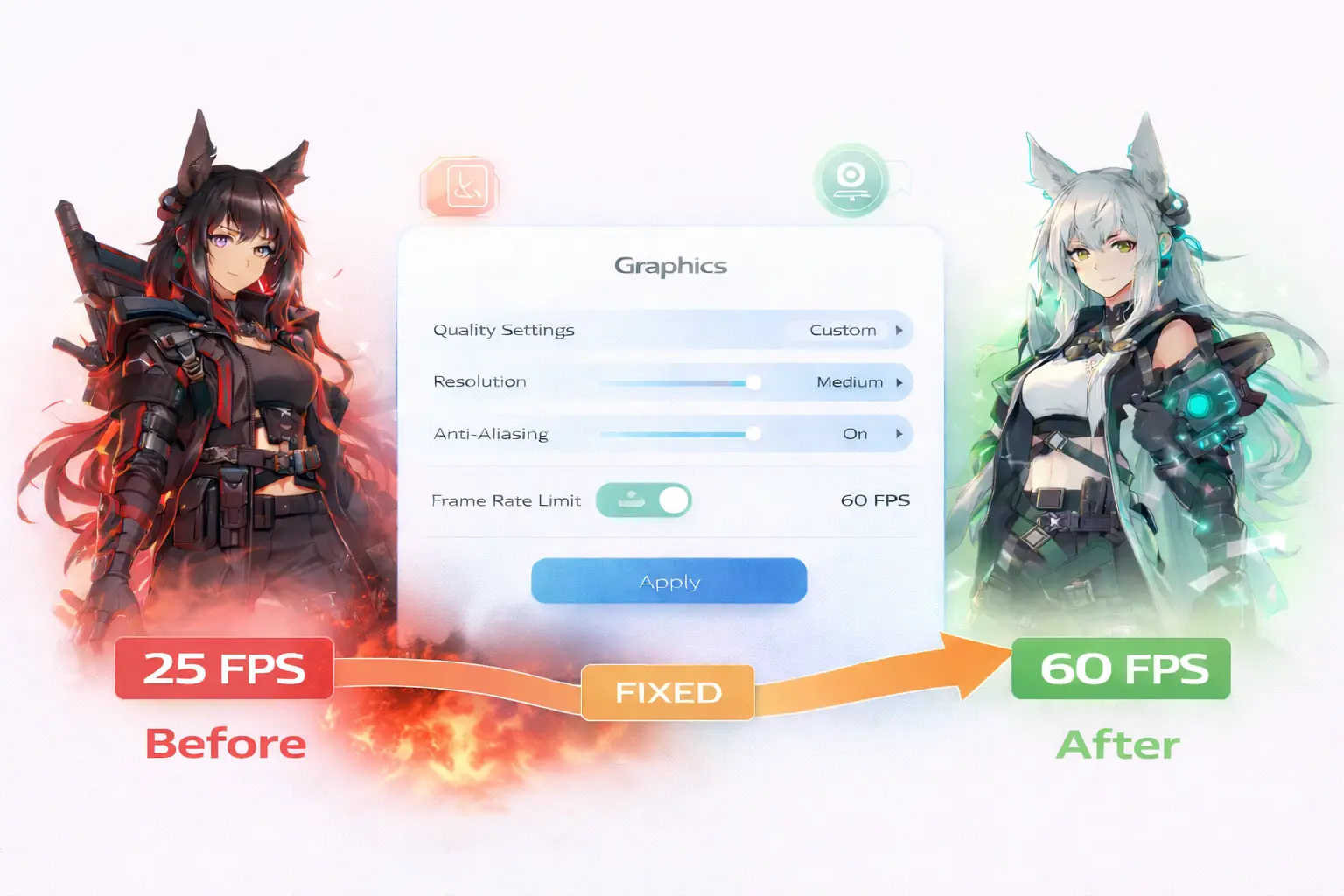
Graphics Quality should be set to Custom rather than presets. Presets enable unnecessary effects that tank performance. Custom control allows targeted reductions.
Resolution should match your monitor’s native resolution. Reducing resolution creates blurry visuals without proportional performance gains.
Render Scale controls internal rendering resolution before upscaling. Dropping from 100% to 85% provides significant improvements while keeping images sharp. Below 75% creates noticeable blur.
Volumetric Fog represents one of the heaviest drains in outdoor areas. Setting this to Low or Off immediately improves performance without dramatically changing visuals.
Shadow Quality impacts performance significantly. Shadows don’t contribute meaningfully to gameplay visibility. Medium provides adequate definition while High wastes resources.
Screen Space Reflections hammer performance during battles when effects fill the screen. Lowering to Medium or Off removes a major bottleneck.
Ambient Occlusion and Vegetation Density cost performance without critical gameplay benefits. Both can be safely reduced when chasing FPS improvements.
Image enhancement options
NVIDIA DLSS on compatible GPUs provides substantial performance gains through intelligent upscaling. DLSS renders at lower internal resolution then uses AI to reconstruct sharp output.
DLSS Balanced offers the best compromise between performance and quality. Quality mode prioritizes visuals with modest gains. Performance mode pushes FPS higher but can introduce artifacts.
For non-NVIDIA GPUs, TAAU provides similar functionality with less effective results. TAAU produces softer images compared to DLSS.
Frame Generation increases displayed FPS by generating intermediate frames. This makes motion appear smoother but adds input latency. Skip Frame Generation unless visual smoothness matters more than control precision.
Driver and system-level fixes
NVIDIA users should check the NVIDIA App for optimization conflicts. Recent reports indicate automatic optimizations sometimes create visual blur and stuttering in Endfield specifically. Open the NVIDIA App, navigate to Graphics > Program Settings, locate Arknights: Endfield, and click Revert to disable automated tuning.
Additionally, disable “Automatically optimize newly added games and apps” in NVIDIA App Settings. This prevents future driver updates from re-introducing optimization conflicts.
The game defaults to DirectX 12 which provides better performance on modern hardware but causes crashes on some older systems. Switching to DirectX 11 through the launcher’s rendering mode menu improves stability on CPUs and GPUs from 2018 or earlier. Click the menu icon next to the Play button in the launcher and select DirectX 11 under Rendering Mode.
Vertical Sync should remain Off unless you experience screen tearing. Standard V-Sync introduces noticeable input lag by buffering frames to match monitor refresh rates. G-Sync or FreeSync compatible setups can enable adaptive sync for tear-free visuals without the latency penalty.
Game file integrity verification solves many persistent stuttering issues. The launcher includes a “Check Game Integrity” option that scans for corrupted or missing files and redownloads them. Run this check if stuttering persists after graphics adjustments.
Background applications consume system resources that could otherwise support smoother gameplay. Close unnecessary programs before launching Endfield—particularly RGB control software, monitoring utilities, and streaming applications that overlay on games. These frequently cause frame time inconsistencies even on powerful hardware.
Mobile-specific considerations
Thermal throttling represents the primary mobile performance killer. Devices downclock processors when temperatures rise, causing frame rates to plummet after sustained play.
Remove thick phone cases during sessions as they trap heat. Lower screen brightness to reduce thermal load. Close background apps before launching.
The default FPS cap is 30 on mobile. Access Settings > Performance & Graphics to select 60 or 120 FPS. Higher rates improve responsiveness but increase battery drain and heat.
Monitor device temperature. If the phone becomes uncomfortably hot after twenty minutes, reduce graphics quality or lower FPS to prevent thermal throttling.
SSD installation benefits
Endfield strongly recommends SSD installation. The game streams assets dynamically, and mechanical drives create loading stutters during area transitions.
SSDs eliminate texture pop-in where low-resolution placeholders gradually sharpen. Instant asset availability prevents freezes when entering combat in new locations.
If installing on hard drive, expect occasional hitching during exploration. Combat in previously-visited areas runs smoothly once assets load into RAM.
Performance testing methodology
Apply settings then test in actual combat scenarios rather than standing idle. Fast travel to combat-heavy areas and engage enemies while monitoring FPS indicators.
The Hub is least demanding—solid performance there doesn’t guarantee smooth combat elsewhere. Test areas that stress your hardware. CPU-limited systems struggle with dense crowds. GPU-limited builds suffer during particle-heavy abilities.
Long sessions can reveal memory leaks. If performance degrades over an hour, restart the game to clear accumulated memory issues.
Finding your performance baseline
Start with Graphics Quality on Custom, Resolution at native, FPS cap at 60, and V-Sync Off. Set Render Scale to 85%, Volumetric Fog to Low, Shadows to Medium, and Reflections to Medium. Enable DLSS Balanced if available, otherwise use TAAU.
Test this baseline configuration in combat. If performance remains unstable, reduce Shadows and Reflections to Low. Lower Render Scale to 75%. Disable Ambient Occlusion and reduce Vegetation Density.
If performance exceeds requirements comfortably, incrementally raise settings until you approach system limits. Maintaining headroom above your target FPS prevents drops during intensive sequences.
The goal isn’t maximizing every visual effect—it’s achieving consistent, responsive gameplay that maintains target frame rates during actual combat rather than screenshot scenarios.

Amed Parker
PC performance and hardware specialist focused on system optimization and component analysis with real world performance testing. I combine hardware knowledge with tuning expertise to deliver stable and efficient results.