

Low frame rates can absolutely destroy what should be an amazing gaming experience. You know the feeling, you’re trying to line up that perfect headshot in a competitive shooter or just trying to enjoy the latest AAA title and everything feels like you’re moving through molasses. The stuttering, the lag, the frustration when you die because your frames dropped at the worst possible moment.
Here’s the thing though, and this might surprise you, you don’t always need to drop hundreds of dollars on new hardware to fix these issues.
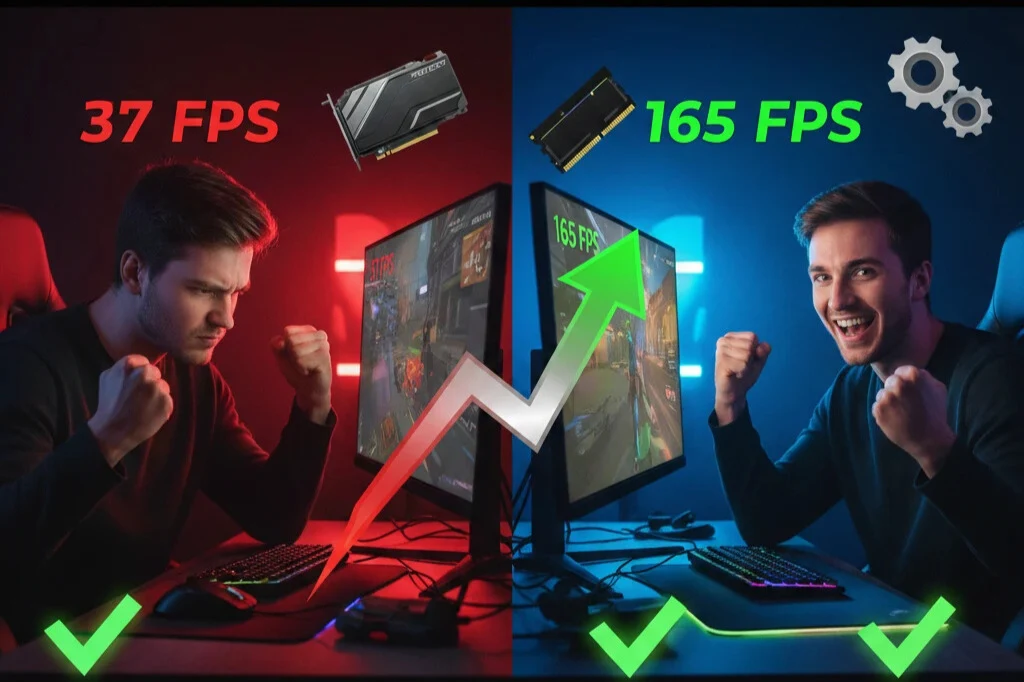
This guide covers 15 methods that actually work to boost your FPS. Some take literally two minutes, others require a bit more effort but the results can be dramatic. We’re talking potential frame rate doublings here.
What you’ll learn
By the time you finish reading this you’ll understand how to optimize pretty much everything, your graphics card settings, windows itself, in-game options and even some hardware tweaks. Most of this stuff is completely free and you can knock it out in an afternoon while watching youtube videos or whatever.
Understanding FPS and why it actually matters
FPS stands for frames per second, basically how many individual images your GPU is churning out every second. More frames equals smoother gameplay and better responsiveness, it’s really that simple. In competitive games this can mean the difference between winning and losing.
The targets most people aim for:
- 30 FPS: barely playable honestly, feels pretty sluggish
- 60 FPS: this is where smooth gaming starts
- 144 FPS: the sweet spot for competitive play
- 240+ FPS: pro level stuff, esports territory
Trust me, once you’ve experienced 144 FPS you can never go back to 60. Your aim gets noticeably better, movement feels incredible and you just react faster to everything happening on screen. It’s not placebo, it’s real.
Method 1: update your graphics drivers
Okay so this one is almost embarrassingly simple but you’d be shocked how many people are running drivers from like six months ago. GPU manufacturers (NVIDIA and AMD mainly) are constantly pushing out updates that improve performance in both new releases and older games.
For NVIDIA cards: Just hit up the NVIDIA website and grab GeForce Experience, it’ll auto-detect everything. Or you can manually download drivers if you’re old school. Pro tip, do a clean installation every few months to clear out all the accumulated junk from previous versions.
For AMD cards: Download that AMD Software Adrenalin Edition thing, their auto-detect tool actually works pretty well these days.
What to expect: anywhere from 5-20% gains depending on how ancient your current drivers are. Some game-specific updates can give even bigger bumps, I’ve seen 30% improvements in certain titles.
Method 2: optimize in-game graphics settings
Not all graphics settings are created equal, some absolutely tank your performance while barely making the game look better. This is where you need to be smart about what you’re sacrificing.
Settings you should lower first:
Shadows are the biggest offender here. Switch from ultra down to medium or even low, during actual gameplay you won’t notice the difference but your FPS will thank you. Seriously, shadows are ridiculously demanding for what they add visually.
Anti-aliasing can go from 8x down to 2x or just use FXAA instead of MSAA. The visual difference is minimal unless you’re sitting there comparing screenshots side by side.
Ambient occlusion, turn this off or use SSAO instead of HBAO+. It adds subtle shadows in corners and crevices but costs way too much performance for such a small detail.
Volumetric effects like fog and clouds? FPS killers. Reduce or disable these.
Motion blur should just be off always, it doesn’t even look good and makes everything feel less responsive anyway.
Settings that are usually fine to keep high:
Texture quality uses your VRAM not processing power so if you’ve got 6GB or more VRAM keep this high, it actually makes games look way better.
View distance matters in multiplayer, you want to see enemies from far away.
Model detail affects how characters look, relatively low performance cost so keep it decent.
Expected improvement: you can easily see 30-50% FPS increase just by being smart about which settings matter and which don’t.
Method 3: lower your resolution or use resolution scaling
Resolution impacts FPS more than anything else. Dropping from 4K down to 1440p or 1440p to 1080p makes a massive difference, like we’re talking potentially doubling your frame rate.
Resolution scaling:
Most modern games have this feature where they render at a lower resolution internally then upscale to your monitor’s native res. Set it to 80-90% and you get great performance with minimal quality loss.
DLSS and FSR are game changers:
If your game supports NVIDIA’s DLSS or AMD’s FSR, enable it immediately, like right now. Quality mode gives you 40-50% more FPS, balanced mode can literally double your frames. The AI upscaling is so good these days it sometimes looks better than native resolution.
What you’ll gain: 50-100% when dropping a full resolution tier, or 40-60% with DLSS/FSR doing its magic.
Method 4: close background applications
This one seems obvious but you’d be surprised what’s running in the background hogging resources.
Stuff to close:
Chrome with its 47 tabs (yeah I see you), Discord if you’re not actively in voice, OBS or any streaming software when you’re not recording, those RGB control programs like iCUE or Aura because apparently your RAM needs to be rainbow colored, torrent clients, cloud backup services constantly syncing.
Press Ctrl+Shift+Esc, sort by GPU or CPU usage and close whatever isn’t essential. Just be careful not to kill actual system processes or windows will get mad at you.
Expected gain: 5-15% depending on how much stuff you had running.
Method 5: enable game mode in Windows
Windows has this game mode feature that prioritizes resources for your game, it’s actually useful despite coming from Microsoft.
How to enable: Windows settings, gaming section, game mode, toggle on. While you’re there, disable that Xbox game bar thing unless you actually use it, it causes issues in some games.
More windows tweaks:
Right-click your game’s exe file, properties, compatibility, check “disable fullscreen optimizations”. This gives the game direct control over your display which usually helps.
Also change your power plan to high performance, stops the CPU from throttling mid-game.
Expected gain: 5-10% plus you might eliminate random stuttering.
Method 6: optimize NVIDIA or AMD control panel settings
We wrote a whole guide on NVIDIA settings specifically but here’s the quick version of what matters most.
NVIDIA essentials:
Power managment mode set to prefer maximum performance Low latency mode on ultra for competitive games Texture filtering quality to high performance Shader cache enabled Threaded optimization on
AMD key settings:
Radeon anti-lag enabled Radeon boost enabled Radeon chill disabled (this actually limits your FPS) Texture filtering set to performance
Expected gain: 15-25% when you configure everything properly.
Method 7: adjust windows visual effects
Windows loves its fancy animations and effects, your game doesn’t need them though.
Type “adjust appearance” in the search bar, select that “adjust the appearance and performance of windows” option, either choose “adjust for best performance” to nuke everything or manually disable the animations you don’t want. Stuff like animate windows when minimizing, taskbar animations, fade effects.
Expected gain: 3-8% with overall smoother system feel.
Method 8: overclock your GPU
Free performance just sitting there waiting for you. Overclocking pushes your graphics card beyond its factory settings, most modern cards have tons of headroom.
The safe way to do it:
Download MSI Afterburner, works with any GPU brand. Increase core clock by +50 MHz, test in a game or benchmark. Stable? Add another +50 MHz. Keep going until you see visual glitches or crashes then back off 50 MHz from that point.
Do the same with memory clock, most cards handle +400-800 MHz easy on the memory.
Max out that power limit slider too, usually goes to 110-120%, prevents thermal throttling.
Important note: watch your temps with the Afterburner overlay, keep the GPU under 83°C for longevity. If it’s running hotter than that you might need better cooling.
Expected gain: 10-20% with a solid overclock and it costs nothing.
Method 9: upgrade or optimize your RAM
RAM speed and amount directly impacts gaming especially in CPU-heavy titles.
Check your situation:
Open task manager while gaming, if you’re using over 90% of your RAM capacity you need more. 16GB is minimum these days for modern games, 32GB is the comfortable amount.
XMP/DOCP profiles:
Here’s something most people don’t know, your RAM is probably running way slower than it should be. Go into your BIOS (press Delete or F2 when booting), find XMP (Intel) or DOCP (AMD) and enable it. This can jump your RAM from 2133 MHz up to 3200+ MHz or whatever speed you bought.
Expected gain: 10-30% in games that hammer the CPU like Warzone, Fortnite, simulation games.
Method 10: disable Windows updates during gaming
Windows loves to start downloading and installing updates at the worst possible times, absolutely murdering your FPS in the process.
Pause that nonsense:
Go to windows settings, update & security, windows update, pause for 7 days. Set your active hours to when you usually game so it won’t randomly restart on you.
Also disable automatic driver updates because windows installing random GPU drivers mid-session is not fun.
Expected gain: prevents those sudden mysterious FPS drops.
Method 11: clean your PC physically
Dust is the enemy. Dust buildup causes overheating which causes thermal throttling which means your components intentionally slow themselves down to avoid damage.
How to clean properly:
Power off, unplug everything, open that case. Compressed air is your friend, blow out the GPU fans, CPU cooler, case fans, power supply. Pay extra attention to GPU heatsink fins because they trap dust like crazy.
Temperature check:
Use HWMonitor or MSI Afterburner to monitor temps while gaming, GPU should stay below 80°C ideally, CPU below 75°C. Higher than that? Consider reapplying thermal paste or adding more case fans.
Expected gain: 10-25% if you were thermal throttling, also your hardware will last longer.
Method 12: defragment or optimize your drives
Slow storage causes texture pop-in and stuttering especially in open world games.
For hard drives:
Use the windows defragment tool, search for “defragment and optimize drives”. Run it monthly if you’re still gaming off an HDD.
For SSDs:
Never defragment an SSD, you’ll kill it. Use trim optimization instead in that same tool.
Real talk though:
If you’re still gaming off a hard drive in 2025, get an SSD. Even a cheap SATA SSD eliminates most stuttering. NVMe drives are even better for DirectStorage games.
Expected gain: eliminates stuttering for HDD users, maintains performance for SSD users.
Method 13: adjust your monitor refresh rate
Sometimes windows just decides your 144Hz monitor should run at 60Hz because reasons.
Check it:
Right-click desktop, display settings, scroll to advanced display, check the refresh rate. If it’s not maxed out (like 60Hz on a 144Hz panel) change it.
Also make sure your games are running in fullscreen exclusive not borderless window, borderless can prevent proper refresh rate usage.
Expected gain: you’ll actually use what you paid for.
Method 14: disable overlays and recording features
Every overlay eats performance, Discord, GeForce Experience, Xbox game bar, Steam, they all add overhead.
Turn them off:
Discord overlay in user settings NVIDIA overlay with alt+Z then settings Xbox game bar in windows gaming settings Steam overlay in steam settings
Recording stuff:
Windows game DVR off NVIDIA ShadowPlay only when actually recording AMD ReLive same deal
Expected gain: 5-15% depending on how many you had running.
Method 15: reinstall or verify game files
Sometimes game files get corrupted and cause performance issues that have nothing to do with your hardware.
How to verify:
Steam: right-click game, properties, local files, verify integrity Epic: three dots, manage, verify Battle.net: options, scan and repair
Expected gain: fixes weird performance problems that nothing else can.
Bonus tips because why not
Process priority: task manager while gaming, find your game, right-click, set priority to high. Windows will prioritize it over other stuff.
Startup programs: windows+R, type msconfig, startup tab, disable everything unnecessary.
Ethernet over WiFi: wired connection reduces ping and eliminates packet loss that feels like stuttering.
Strategic FPS caps: getting 200 FPS but with inconsistent frame times? Cap at your monitor’s refresh rate for more stable frametimes.
Hardware upgrade priority if you need it
Tried everything and still not hitting targets? Here’s what to upgrade first.
Graphics card has the biggest impact, upgrading from GTX 1660 to RTX 4060 Ti roughly doubles FPS.
More RAM if you’ve got 8GB go to 16GB minimum, cheap upgrade with big impact.
CPU matters for high refresh rate gaming 144Hz+, check if you’re CPU bottlenecked in Afterburner.
SSD won’t boost FPS directly but eliminates stuttering, essential if you’re still on HDD.
Better cooling prevents thermal throttling, maintains boost clocks.
Common mistakes people make
Running too many monitoring tools at once adds overhead, pick one like Afterburner.
Using ultra presets blindly, many games have broken ultra settings that destroy performance for minimal visual gain.
Gaming on battery power if you have a laptop, always plug in with high performance mode.
Installing games on external USB drives, slow read speeds cause constant stuttering.
Not updating BIOS, can cause compatibility issues with new hardware.
Measure your results properly
Benchmark before and after so you can see actual improvement.
Built-in benchmarks in games like Shadow of the Tomb Raider, Forza Horizon 5, Cyberpunk 2077 are perfect for this.
Monitoring tools like MSI Afterburner with RivaTuner show real-time FPS, frame time, usage stats. Watch the 1% low FPS, that’s what indicates stuttering.
Combined results: applying everything applicable can improve FPS by 50-150% depending on your starting point.
Wrapping this up
Look, improving gaming performance doesn’t always mean buying new hardware. These 15 methods can transform a struggling setup into smooth high-FPS gaming.
Start with the high-impact stuff, drivers, in-game settings, GPU control panel. Then work through the rest based on what applies to your setup.
Every system is different so test changes individually to see what works for your specific hardware. Some methods will barely move the needle, others might double your frames.
Consistency matters, revisit these settings after major windows updates or driver changes. Regular maintenance like cleaning dust keeps everything running at peak performance.
Now go enjoy those butter smooth frame rates.