
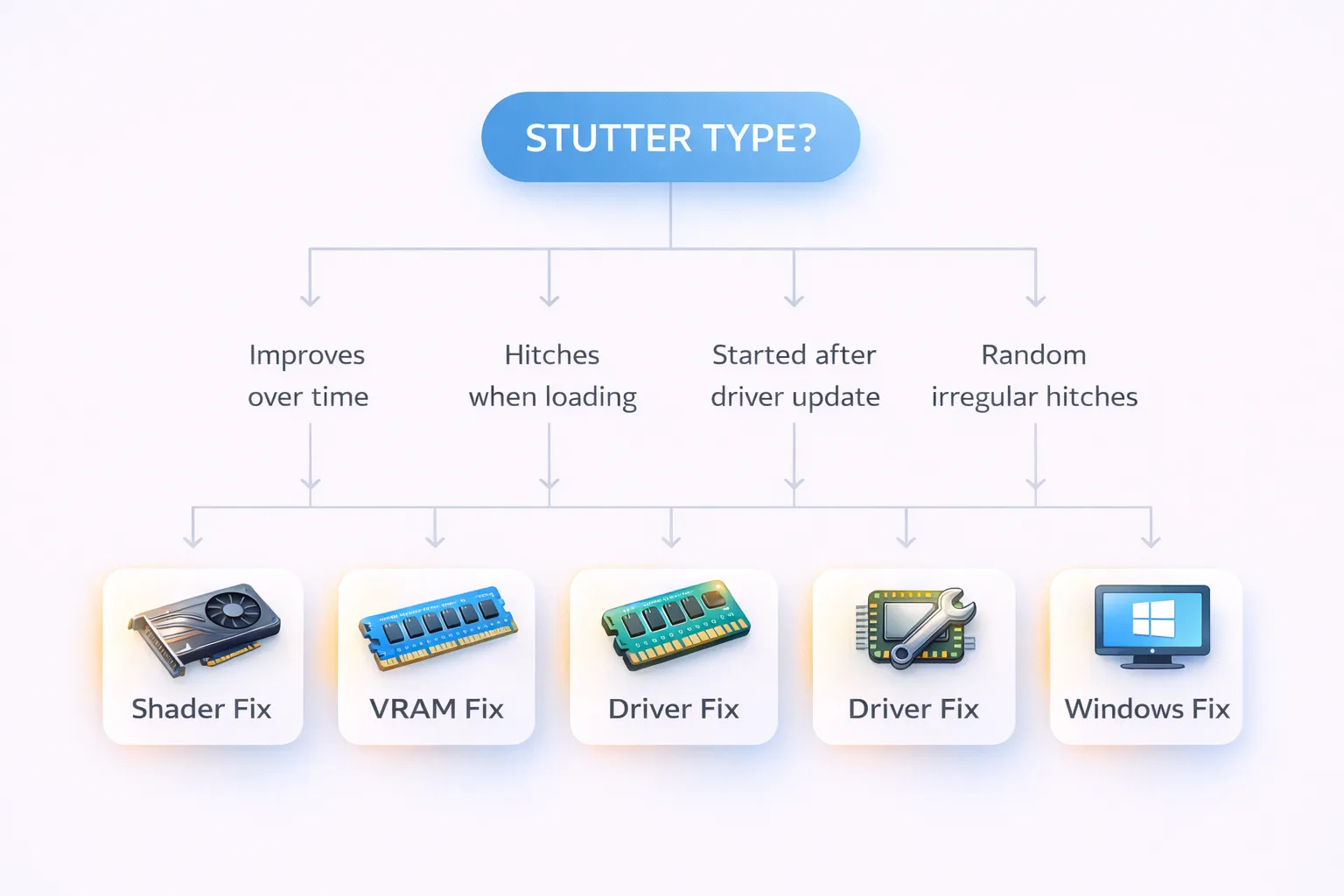
Stuttering is genuinely one of the more frustrating performance problems to diagnose, because it doesn’t behave like a simple FPS issue. You can have a powerful GPU, a stable average framerate, and still get those jarring half-second freezes that make the game feel unplayable. Here’s the thing most people miss: stuttering almost never has a single cause. It’s usually one of four distinct problems, each with its own fix, and treating the wrong one wastes time while the real culprit goes untouched. This guide walks through each cause systematically, starting with the most common.
Shader compilation stutter: the most misunderstood type
If you’ve ever launched a new game and noticed bad stuttering in the first hour that gradually improves over time, you’ve experienced shader compilation stutter. Basically, what’s happening under the hood is that modern games using DirectX 12 or Vulkan need to compile shaders on the fly the first time each visual scenario occurs. The GPU hits a new situation, pauses to compile, and you feel it as a stutter. This is not a hardware problem. It’s an architectural one.
The fix depends on what the game offers. Many titles now include a shader pre-compilation option on the loading screen or in graphics settings. It’s usually labeled “compile shaders,” “shader warmup,” or something similar, and it’s worth running it fully even if it takes several minutes. That upfront cost eliminates most of the in-game hitches.
For games without this option, the practical solution is simply playing through the stuttery first session. The compiled shaders get cached, and subsequent sessions run cleanly. Some players use benchmark runs or in-game tools to trigger shader compilation across different environments before their actual playthrough. It sounds tedious but it works (and it genuinely saves frustration in games you plan to spend serious time in).
One thing worth knowing: deleting shader cache folders, which some guides recommend as a general troubleshooting step, will force the game to recompile everything. Unless you have a specific reason to clear the cache, leave it alone.
VRAM exhaustion: when your GPU runs out of headroom
This type of stutter has a very specific pattern. Everything runs smoothly, then suddenly the game hitches for a second, recovers, and continues fine. It tends to happen when loading into new areas, during cutscenes with high texture complexity, or when you push texture quality settings above what your GPU can comfortably hold.
What’s happening is that your GPU’s VRAM fills up and the game starts pulling assets from system RAM instead, which is substantially slower. The hitch is the data transfer.
The most direct fix is reducing texture quality settings. This is often the single most impactful change for VRAM-limited systems, and honestly it’s worth trying before anything else if you’re on a card with 8GB or less. Texture quality eats VRAM faster than almost any other setting.
Beyond that, closing background applications that use GPU memory helps more than expected. Browsers, Discord with hardware acceleration enabled, and overlay software all consume VRAM that your game could be using. Disabling hardware acceleration in Discord specifically is a change worth making on any system where VRAM is tight.
If your GPU has a monitoring tool, watch the VRAM usage while playing. If it’s consistently hitting 95-100% of available memory during stutters, that confirms the cause and the fix path is clear.
Driver-related stutters: the ones that come out of nowhere
Here’s a suprisingly common scenario: a game that ran perfectly fine for weeks starts stuttering after a driver update. Or stuttering appears specifically with overlay software active. Driver-related stutters tend to be irregular, happen at consistent intervals regardless of scene complexity, and don’t respond to in-game settings changes.
The first thing to check is whether the stutter started after a recent driver installation. If it did, rolling back to the previous version is a legitimate fix, not just a workaround. Both NVIDIA and AMD maintain driver history on their support pages, and performing a clean install using DDU (Display Driver Uninstaller) before reinstalling the older version removes any conflicting files that partial uninstalls leave behind.
If you’re on NVIDIA, the NVIDIA App’s automatic game optimization feature sometimes conflicts with specific titles, applying settings that cause frame time inconsistencies. Opening the NVIDIA App, finding the game under Program Settings, and reverting to default values often resolves stutters that appeared without any other changes.
Overlay software is another frequent culprit. The GeForce Experience overlay, Xbox Game Bar, Discord overlay, and third-party monitoring tools all inject into the game’s rendering pipeline. Disabling each one individually and testing is the methodical approach. It’s tedious but it isolates the cause definitively.
Windows-level fixes: the background problems most players never check
The issues above are game or driver adjacent. This category is different: it’s your operating system working against your game without you realizing it.
Power plan settings are the most commonly overlooked. Windows defaults to Balanced power mode, which throttles CPU performance to save energy. For gaming, High Performance mode or the AMD/Intel specific high performance variants keep the CPU running at full capacity without frequency dips. The differance in frame time consistency can be genuinely noticeable, especially during CPU-heavy scenarios like open world traversal or large battles.
Hardware-accelerated GPU scheduling (HAGS) is worth checking. It’s found in Windows Settings under Display, and for most modern GPUs it reduces CPU overhead in the graphics pipeline. On some systems it introduces stutters rather than eliminating them, so it’s worth testing both states. Enable it, play for a session, disable it, play again, and see which is more consistent.
Background processes are a real source of irregular stutters that players often misattribute to the game. Windows Update running in the background, antivirus scanning game directories, and automatic cloud sync services all compete for storage and CPU resources at random intervals. Setting your antivirus to exclude game installation directories from real-time scanning eliminates one of the more common sources of random one-second hitches.
Storage speed matters more than most people expect for open world games specifically. Games that stream assets continuously as you move through the world create constant read demands on your drive. If you’re running a game from a mechanical hard drive and experiencing regular stutters during movement, migrating to an SSD resolves it more reliably than any settings change.
Putting it together
The practical approach is to work through these in order. Start with the simplest checks: power plan, VRAM usage, recent driver changes. If those don’t resolve it, move to overlay software and Windows settings. Shader compilation stutter is usually self-diagnosing given its specific pattern.
Most persistent stuttering issues come down to one of these four categories. The key is identifying which one you’re actually dealing with before changing settings, because the fixes are specific and mixing them up just adds confusion to an already frustrating problem.










Join the Discussion