

Once Human runs better than most open-world survival games at equivalent hardware levels, and that is not an accident. Starry Studio built the game with broad hardware accessibility as a clear priority. But “runs well” and “runs optimally” are two different things, and there is a meaningful gap between them that the right settings close completely.
Here is what actually moves the needle, and what you can safely ignore.
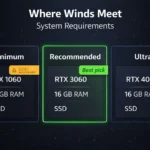
| PC Tier | Target FPS | Recommended Preset |
|---|---|---|
| Low-end (GTX 750 Ti / i5-4460) | 30-45 FPS | Low, 1080p |
| Mid-range (GTX 1060 / i7-7700) | 60-80 FPS | Medium-High, 1080p |
| High-end (RTX 3060 / i5-12400F) | 100+ FPS | Ultra, 1440p |
DOWNLOAD FREE
Start with Windows before touching the game
Here’s the thing most people miss: the biggest performance gains in Once Human are not inside the game settings menu. They are in Windows. Two changes in particular make a noticeable differance before you even launch.
First, set your power plan to High Performance. Go to Control Panel, Power Options, and switch from Balanced to High Performance. Balanced mode throttles your CPU clock speed when demand seems low, and Once Human’s engine occasionally looks idle to Windows even when it isn’t, which causes micro-stutters during transitions and combat.
Second, enable Hardware-Accelerated GPU Scheduling (HAGS). Open Windows Settings, go to Display, then Graphics Settings, and toggle it on. On Nvidia and AMD cards from 2019 onward, this reduces frame latency and smooths out the delivery of frames to your monitor. It is genuinly one of the more impactful changes you can make for almost no effort.
While you are in Graphics Settings, find the Once Human executable and set it to High Performance GPU mode. On systems with integrated graphics, this ensures the game is always using your dedicated card.
The settings that actually matter in-game
Once Human’s settings menu has a lot of sliders, and honestly most of them have a minimal impact on FPS. Here is where to focus.
Vegetation Density is the single setting with the most performance impact in Once Human. Reducing it from High to Low gives a 5 to 10 percent FPS improvement, and the visual difference is subtle enough that most players do not notice after the first few minutes. This is the first thing to lower on mid-range and below hardware.
Anti-Aliasing is the tricky one. Turning it off gives you back 8 to 10 percent of your framerate, but at 1080p the resulting image shimmering on grass and fences is genuinely distracting. The better move is to use FSR 2 (available to all GPUs) or DLSS 3 (RTX cards only) instead of native AA. Set FSR to Quality mode, turn off the built-in AA, and the upscaled image looks cleaner than the native with AA enabled, while running suprisingly faster. Basically, what’s happening under the hood is the upscaler handles the aliasing work more efficiently than the TAA implementation.
Texture Quality affects VRAM usage more than framerate. If you have 6 GB of VRAM or more, leave it at High. If you are on 4 GB, set it to Medium to avoid the stuttering that happens when the game runs out of VRAM and starts pulling textures from system RAM.
VFX Quality and Motion Blur can both be set to Low or Off with minimal visual cost and a small but consistent FPS benefit, around 2 to 3 percent each. Motion blur in particular is worth disabling regardless of hardware, since it affects readability during combat.
Draw Distance has almost no measurable performance impact and can stay at its default value. Do not waste time adjusting it.
DX11 vs DX12
Once Human supports both. DX11 is the default and the more stable option on most hardware. DX12 reduces CPU overhead and can improve performance on modern multi-core CPUs, but it is still listed as experimental and occasionally causes additional stuttering on mid-range systems. The recommendation for most players is to stay on DX11 unless you are on a Ryzen 5000 series or newer Intel 12th gen and above, where DX12 tends to behave predictably.
The settings to leave alone
Detail Quality, Shade Quality, and Shadow Distance have a combined FPS impact of roughly 3 to 5 percent across all three. The visual cost of lowering them is visible and not worth the marginal gain. Focus on the settings above and leave these at Medium or High.
Once you have the Windows changes in place and Vegetation Density dialed back, most mid-range setups hit a consistent 60 FPS without touching anything else. The game rewards a few minutes of configuration with a noticeably smoother experience for every hour you play after that.
DOWNLOAD FREE














Join the Discussion