
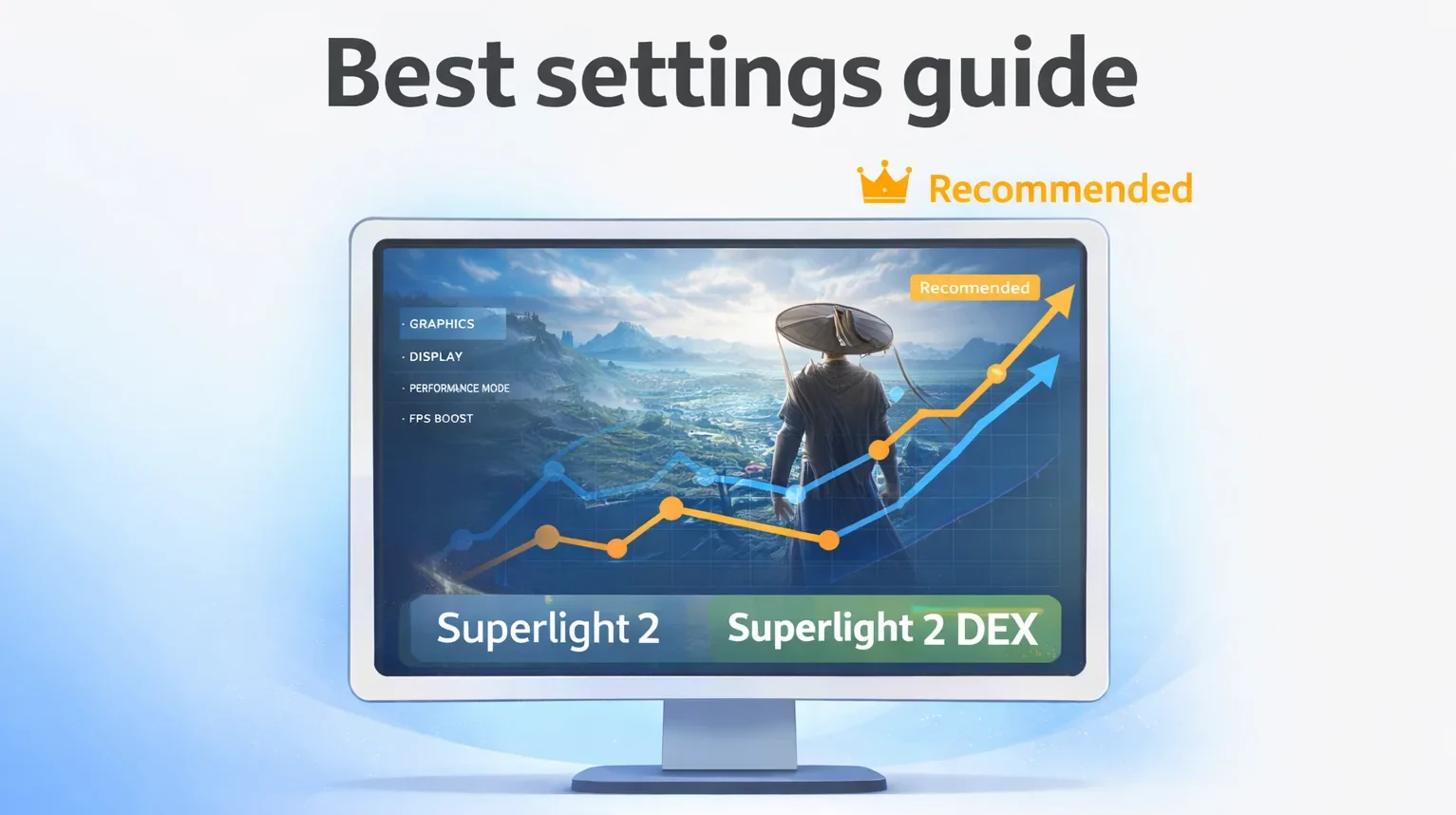
Where Winds Meet is a demanding game, and honestly the reasons why are more interesting than you might expect. Most open-world performance problems come from GPU bottlenecks on texture-heavy scenes. This one is different. The Messiah Engine that powers Where Winds Meet does its open-world streaming in a way that stresses your CPU and RAM in parallel with your GPU, which means the usual approach of just lowering resolution and calling it a day does not always solve the problem. These Where Winds Meet best settings are built around understanding what the engine is actually doing, not just turning sliders down until the number goes up.
[DOWNLOAD FREE AND START OPTIMIZING]
Why this game is demanding in a specific way
Here is the thing most people miss when they hit performance problems in Where Winds Meet. The stutters you experience in Kaifeng city are usually not your GPU struggling with graphics. They are your system managing simultaneous NPC behaviour simulation, asset streaming, and shader compilation, all competing for CPU cycles and RAM bandwidth at the same time.
The Messiah Engine does not use Unreal’s approach of pre-compiling shaders at launch. Shaders compile during your first session as you encounter new environments, enemies, and effects. This is why the first hour of gameplay feels noticeably choppier than the second. It smooths out as the cache builds, and that is completely normal behaviour, not a sign that something is wrong.
Understanding this matters because it changes which settings you prioritise. Dropping shadow quality has more impact than dropping texture quality. Disabling volumetric effects recovers more performance than lowering geometry detail. The settings that cost the most are the ones asking your GPU to calculate things frame by frame, not the ones asking it to hold data in memory.
Display settings: the foundation
Start here before touching anything else. These settings affect every other option downstream.
Set display mode to fullscreen, not borderless windowed. Fullscreen gives the GPU exclusive access to the display output, which reduces input latency and eliminates the small overhead that comes from the compositor sharing resources. It is a genuinely noticable difference in frame pacing during fast combat.
Turn off motion blur entirely. Where Winds Meet has fast weapon swapping and fluid combat animations. Motion blur makes enemy attack indicators harder to read and costs GPU cycles on an effect that actively works against you in gameplay. There is no scenario where it helps.
For super resolution, this is where your GPU generation matters. If you are on an Nvidia RTX card, set DLSS to Quality mode. You get roughly 15 to 20 percent performance improvement with minimal image quality loss, and it is the single biggest FPS gain available without changing any other setting. AMD users should use FSR set to Quality at 66 percent render scale. Intel Arc users have XeSS available, which at Ultra Quality mode often produces better image quality than FSR at comparable performance cost.
V-Sync should be off unless you are experiencing screen tearing that bothers you. If your monitor supports G-Sync or FreeSync, use that instead and leave V-Sync off in-game.
The graphics settings that actually matter
Not every slider in the graphics menu has equal impact. Honestly, most people spend time adjusting things that barely move the needle while leaving the heavy ones at their defaults.
These are the settings to change first, ranked by performance impact:
Shadow quality has the highest single-setting impact in Where Winds Meet. Dropping from Ultra to Medium typically recovers 10 to 20 FPS depending on your GPU, because the engine renders cascaded shadow maps across the entire visible world at Ultra and that calculation runs every frame. Medium shadows are suprisingly good looking in this game. The difference is much harder to spot than the framerate gain suggests.
Volumetric effects are the second priority. The weather system in Where Winds Meet uses volumetric rendering for fog, god rays, and atmospheric depth. It is beautiful and expensive. Dropping this from High to Low recovers significant GPU headroom in outdoor scenes, especially in forested areas and around water.
Effect quality affects particle rendering during combat, which is where the game is most visually intense. At Low, you lose some of the flair from Qigong technique animations, but responsiveness during fights with multiple enemies improves meaningfully. For competitive play in guild wars or PvP, this one is worth lowering even if everything else stays higher.
Texture quality has the least impact on FPS and the most impact on visual quality. Unless you have 4GB VRAM or less, leave this at High or Ultra. Lowering textures saves VRAM but costs almost nothing in frame rate, and the visual downgrade is immediately obvious.
Ambient occlusion and screen-space reflections are both medium-impact settings worth lowering if you need more headroom after adjusting the four above. They contribute to visual depth and realism but are not things you consciously notice when they are gone.
Presets by hardware tier
If you want a starting point rather than individual tuning, here are configurations that target stable 60fps for three hardware tiers.
For minimum spec hardware (GTX 1060, 16GB RAM): use the Lite client, set resolution to 1080p, DLSS or FSR at Performance mode, shadows Low, volumetrics Low, effects Low, textures Medium, ambient occlusion off. Expect 45 to 60fps in open areas and around 40fps in central Kaifeng. Not perfect, but playable for a free game.
For mid-range hardware (RTX 3060 or RX 6600 XT, 16GB RAM): fullscreen 1080p, DLSS or FSR at Quality, shadows Medium, volumetrics Medium, effects Medium, textures High, ambient occlusion Low. This configuration targets stable 60fps in most areas with dips to around 50fps during large fights in the city.
For recommended spec hardware (RTX 2070 Super or RX 6700 XT, 32GB RAM): fullscreen 1080p or 1440p, DLSS or FSR at Quality, shadows High, volumetrics Medium, effects High, textures Ultra, ambient occlusion Medium. Stable 60fps throughout, with headroom for higher refresh rates in most content.
Windows-level tweaks worth doing
Two things outside the game itself that make a consistent difference. First, enable Game Mode in Windows settings. It prioritises CPU resources for the active game and reduces background interruptions that cause frame time spikes. Second, if you are on a Ryzen processor, make sure your power plan is set to Balanced rather than High Performance. Modern Ryzen CPUs use Balanced mode to manage boost clocks more effectively, and counterintuitively it delivers better sustained gaming performance.
If you are on 16GB of RAM, close any background applications before launching. Browsers with multiple tabs, Discord video, streaming software in the background all compete for the memory the game wants to use for streaming assets.
Once the settings are right, you are ready to actually play. Our gameplay guide covers the combat mechanics and systems in depth, and the beginner guide walks you through the first few hours if you are just starting out.
[DOWNLOAD WHERE WINDS MEET FREE AND PLAY AT YOUR BEST]













Join the Discussion