
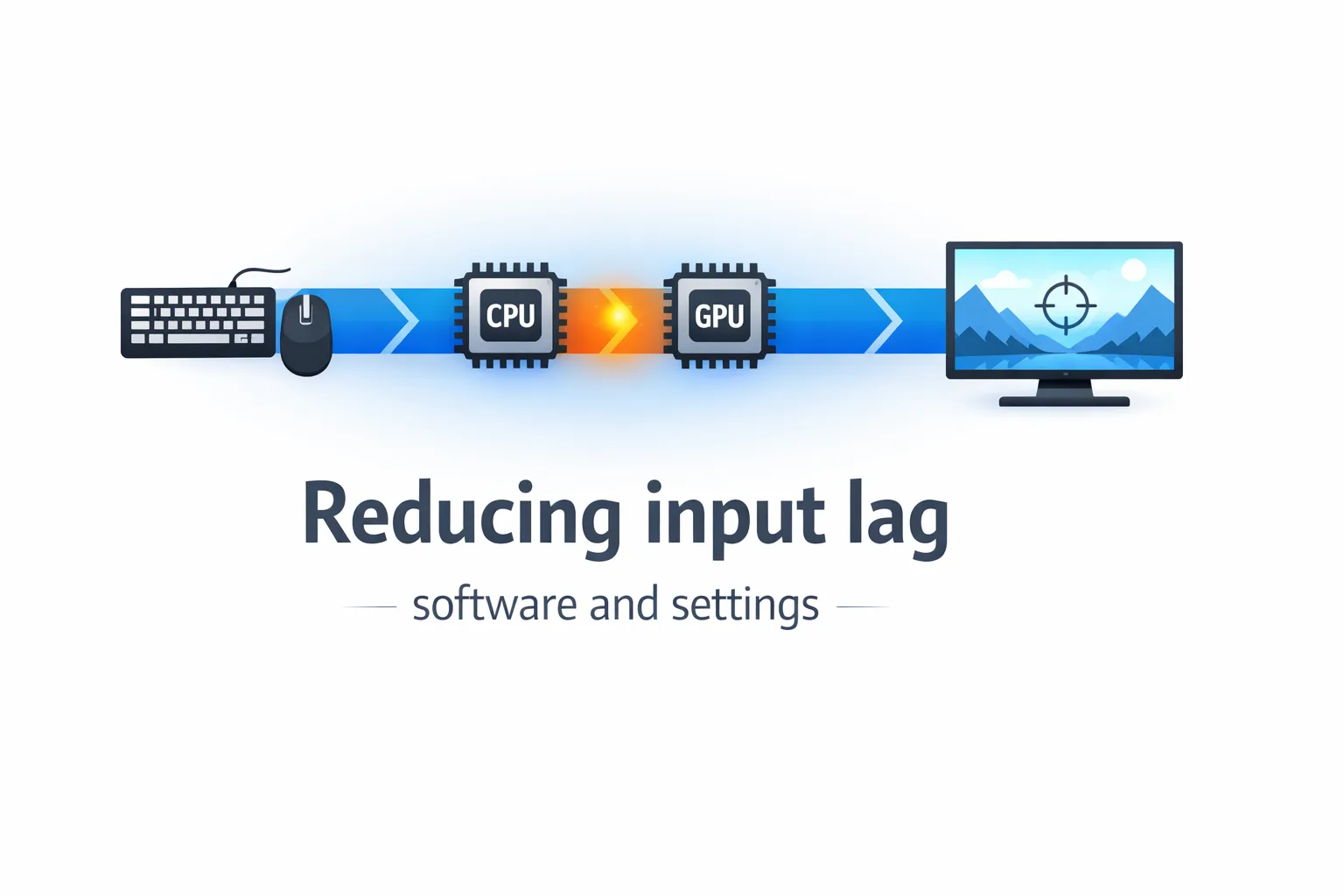
Input lag reduction is one of the highest-return performance improvements you can make on existing hardware. You do not need a new monitor, a new mouse, or a new GPU to feel a meaningful difference. You need the right software configuration and a clear understanding of where latency actually enters the pipeline, because most guides address symptoms rather than sources.
This is the systematic approach to reducing input lag through settings you already have access to, on hardware you already own.
NVIDIA Reflex and AMD Anti-Lag
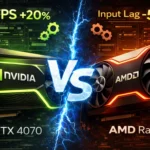
Here’s the thing most people miss about NVIDIA Reflex. It is not a graphics setting that improves frame delivery. It is a latency management system that coordinates the CPU, GPU, and display to reduce the gap between your input and its appearance on screen. Specifically, it reduces the render queue depth that forms when the CPU submits frames faster than the GPU can process them. Without Reflex, that queue builds and adds latency that shows up as a soft, floaty input feel even at high frame rates.
Enabling Reflex in any supported game is the single most impactful software change available on NVIDIA hardware. The latency reduction is measurable with proper tools and perceptible to most players in competitive titles after a session or two of adjustment. Reflex works most effectively when your system is GPU-bound rather than CPU-bound, so verifying this through GPU usage monitoring before expecting results is worth doing.
Reflex + Boost mode adds frame rate limiting behaviour that slightly reduces GPU utilisation headroom to maintain a lean render queue. In most competitive scenarios this produces lower latency than Reflex alone, though it can reduce average frame rates by a small amount. Test both settings in your primary title.
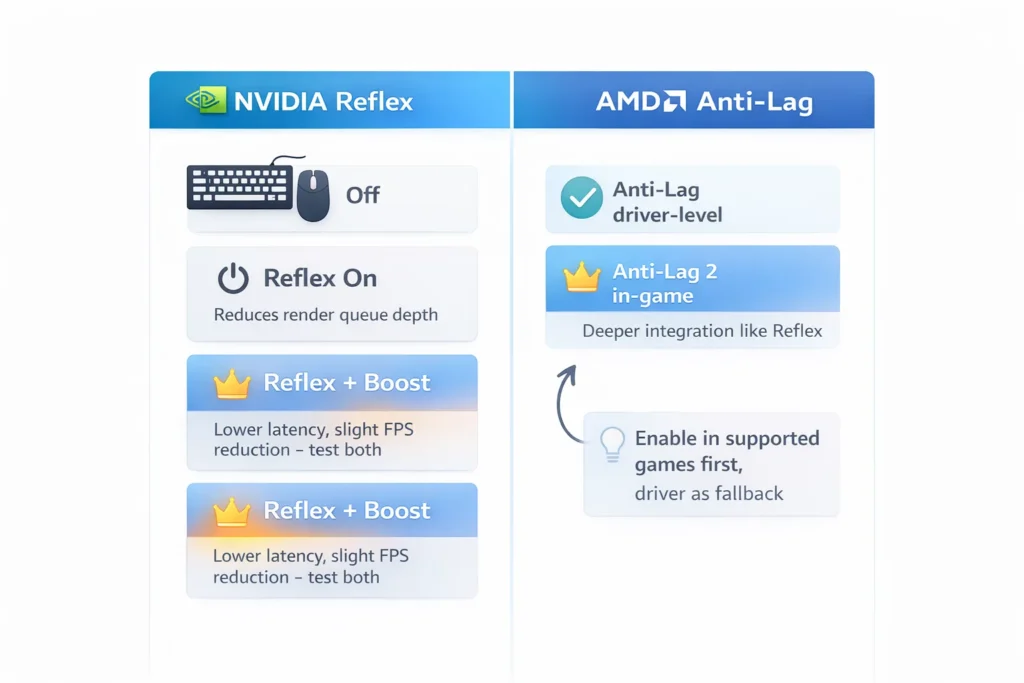
AMD Anti-Lag works on a similar principle. It stagmatically reduces the input-to-render delay by timing when the CPU begins preparing a frame relative to when the GPU is ready to process it. Anti-Lag 2, available in supported titles, offers deeper integration similar to Reflex’s in-engine implementation. For AMD GPU users, enabling Anti-Lag in the driver or Anti-Lag 2 in supported games should be the first stop on the latency reduction checklist.
In-game settings that add latency
The settings that add the most latency are not always obvious, and a significant number of players carry them without knowing it.
Motion blur is the most direct visual-latency coupling in games. It adds a processing pass that introduces frame delay and also obscures motion information your visual system uses to perceive responsive input. Turn it off. Every competitive player does. The performance cost of running with motion blur off is zero, and the latency reduction is real.
Depth of field in real-time is a post-processing effect that adds a processing pass with a measurable latency contribution in some implementations. Disabling it is worth doing in any game where it is a separate toggle.
V-Sync adds latency by design. Standard V-Sync introduces up to one full frame of delay to prevent tearing by holding completed frames until the monitor is ready to display them. This is the worst single setting for input latency in a gaming system. If you are using VRR (G-Sync or FreeSync) on a compatible monitor, disable V-Sync inside the game and let the VRR handle synchronisation without the latency penalty. If you do not have VRR, running a frame rate limiter set slightly below your monitor’s refresh rate accomplishes smoother output than V-Sync with significantly less latency.
Frame generation adds latency in a specific way worth understanding. Displayed frame rates increase. Input latency does not decrease. The GPU-rendered frame rate governs input responsiveness, not the displayed frame count that includes AI-generated frames. Use frame generation for visual smoothness in single-player titles where input precision is secondary, Our frame generation guide covers exactly why the displayed frame count and the input latency figure are independent variables once frame generation is active. and leave it off in competitive scenarios where the latency profile of your raw rendering matters more.
Render resolution scaling downward reduces GPU load and increases frame rate, which in turn reduces latency because the GPU processes frames faster. If you are running at 4K native and latency is a concern, DLSS or FSR Quality mode reduces effective render resolution while maintaining output quality, and the resulting frame rate increase reduces latency alongside the visual overhead of upscaling.
USB polling rate for peripherals
The USB polling rate determines how frequently your mouse and keyboard report their state to the operating system. At 125Hz, reports happen every 8ms. At 1000Hz, every 1ms. At 8000Hz, every 0.125ms.
For keyboards, 1000Hz polling is the practical standard. The latency contribution of keyboard polling at 1000Hz is under 1ms and is not the meaningful variable in most system latency profiles. Upgrading to 8000Hz on a keyboard adds minor CPU overhead with minimal perceptible benefit for most players.
For mice, the calculation is more nuanced. At 1000Hz, mouse polling contributes up to 1ms of potential positional latency per report interval. At 8000Hz, this drops to 0.125ms. For players who have developed sensitivity to input latency through high-refresh-rate gaming, the 8000Hz upgrade is genuinly perceptible in aim precision tasks. For most players, the CPU overhead cost at 8000Hz exceeds the benefit, particularly on mid-range CPUs where the extra polling interrupts compete with game thread processing.
The practical recommendation: 1000Hz for most configurations. Our mouse polling rate guide covers the full breakdown of when 8000Hz actually produces measurable improvement and when the CPU overhead cost exceeds the benefit. 8000Hz only if you are on capable hardware, playing competitive FPS titles specifically, and have evidence that your current latency profile is limiting rather than your hardware.
Exclusive fullscreen importance
Exclusive fullscreen is the display mode where the game has direct control over the display output without the Windows compositor sitting between the rendered frame and the screen. This matters for latency.
In windowed or borderless windowed mode, the Windows Desktop Window Manager processes the game’s output alongside every other element on screen before sending it to the display. This adds processing latency that varies but is measurably present in most scenarios. Borderless windowed mode is convenient for alt-tabbing and multi-monitor setups, and Microsoft has reduced the compositor overhead in recent Windows 11 updates, but exclusive fullscreen still tends to produce lower measured latency in competitive gaming contexts.
Set your game to exclusive fullscreen. Our Windows 11 Game Mode guide covers the OS-level settings that stack alongside exclusive fullscreen to further tighten the full input pipeline. The setting is usually listed as Fullscreen or Exclusive Fullscreen in the display options, as distinct from Borderless Window or Windowed. If a game does not offer the option explicitly, running it from a shortcut with command line parameters can force exclusive fullscreen on most titles.
The one exception worth noting: if you use NVIDIA DLSS Frame Generation or a similar feature that requires the Windows compositor for frame insertion, borderless windowed mode may perform better in that specific configuration. Test both if you use these features.
Measuring your actual input lag
None of these changes are worth doing without knowing your baseline, and the improvements are not worth claiming without verifying them.
The accessible measurement method uses a high-speed camera (240fps or above, which most modern smartphones offer) and a stopwatch application displayed on screen. Film the screen and your input device simultaneously, then count frames between the visible input event and the on-screen response. At 240fps each frame represents 4.16ms, giving you a measurement resolution adequate for identifying double-digit latency improvements from software changes.
Hardware latency analysis tools like NVIDIA FrameView and the built-in latency overlay in supported games provide frame-level data including PC latency measurements when Reflex is active. NVIDIA’s LatencyFleX open standard extends this to non-NVIDIA cards in some implementations.
The measurement exercise also helps you identify which variable is actually the bottleneck in your setup. A system where the display is the dominant latency source needs different intervention than one where the CPU queue is the problem. Measuring first means optimising correctly rather than making changes whose impact you cannot verify.
Honestly, the most valuable outcome from measuring is discovering that your system is performing better than you expected, which is common. Input feel is influenced by more than measured latency, and placebo effects around settings changes are real and documented. Measurement cuts through both directions of that uncertainty.






Join the Discussion