
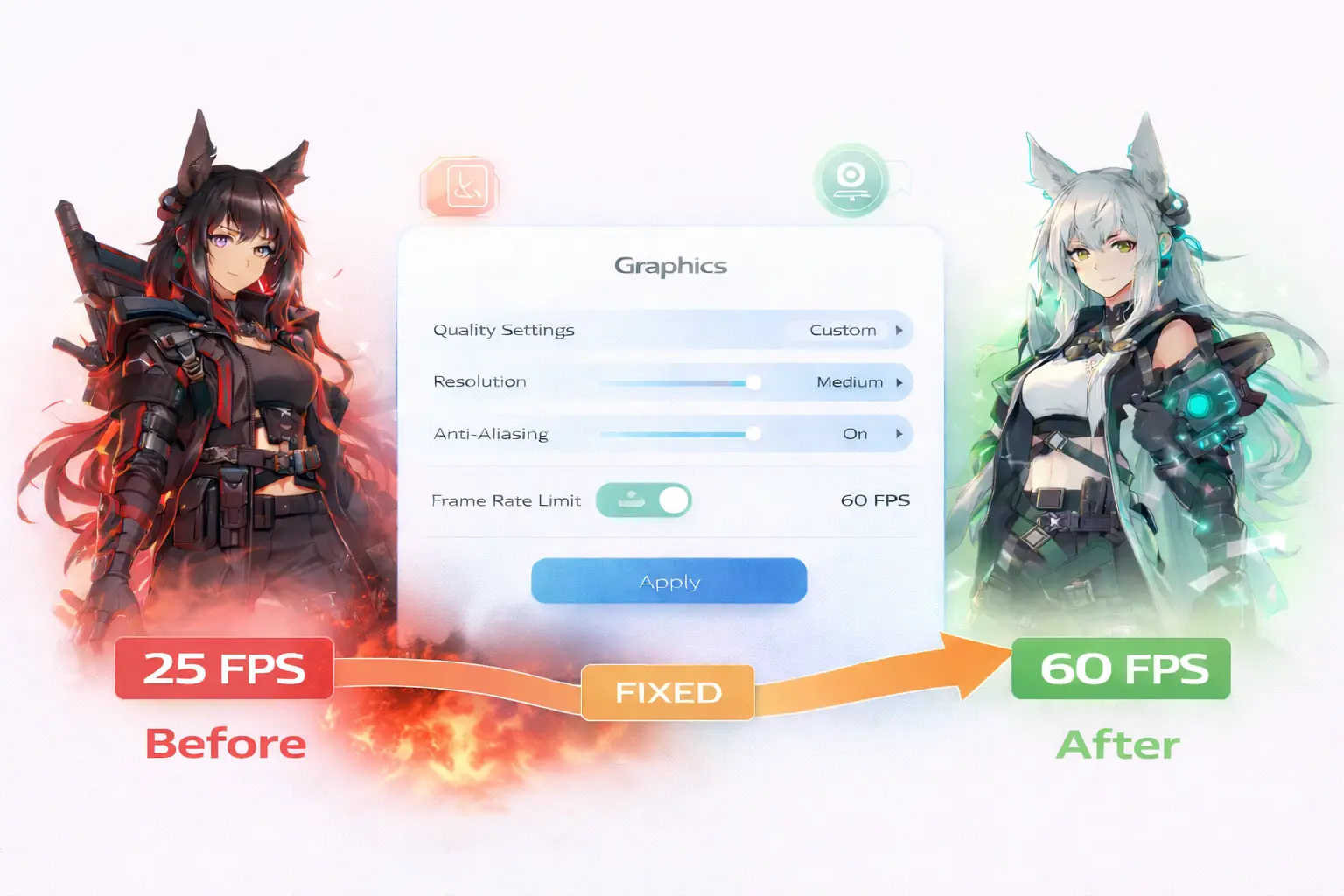
If you’ve been running into frame drops or stuttering in Arknights: Endfield, here’s the thing most people miss: the problem usually isn’t your GPU. This Arknights Endfield performance guide walks through every setting worth adjusting, a few system-level fixes that make a suprising differance, and the one driver conflict that’s been causing issues for a lot of NVIDIA users specifically. The game runs on Unreal Engine 5, which sounds scary, but honestly it’s more forgiving than most people expect. You just need to know where to look.
Understanding what’s actually causing your performance issues
Not all performance problems in Endfield come from the same place, and treating them the same way leads to frustration. There are basically three types you’ll encounter.
FPS drops are the most common. The frame rate falls below a comfortable threshold during heavy combat or when exploring dense areas. This is almost always a GPU limitation. Your card is struggling to render the scene fast enough.
Stuttering is differant. This shows up as brief freezes or hitches that interrupt otherwise smooth gameplay. Stuttering usually points to something else entirely: corrupted game files, a driver conflict, or background processes interfering with the game’s execution. You can have a powerful GPU and still stutter badly if something else is getting in the way.
Network lag is the third category. Your inputs feel delayed, attacks execute late, the character responds slowly. This has nothing to do with your local hardware. It’s server communication. No amount of graphics tweaking will fix it.
The game gives you two useful indicators in the graphics menu: Device Load and Estimated GPU Memory Usage. Keep both below three bars and most performance issues won’t appear.
The graphics settings that actually matter
Go to Graphics Quality and set it to Custom. Presets apply a bundle of settings without letting you target the expensive ones specifically, and that’s where you lose headroom unnecessarily.
Render Scale is the most impactful single setting in the menu. Dropping from 100% to 85% gives you a meaningful performance boost while keeping the image sharp enough that you won’t notice the differance in motion. Below 75% starts to look soft. Start at 85% and adjust from there.
Volumetric Fog is one of the heaviest drains in outdoor areas and open environments. Setting it to Low or Off gives you back noticeable FPS with almost no visual cost during actual gameplay. You’ll miss it in screenshots but not in sessions.
Shadow Quality has a large performance impact and a surprisingly small visual one once you’re moving. Medium provides adequate definition. High and Ultra spend GPU budget on detail you rarely notice while playing.
Screen Space Reflections hammer performance during combat when effects fill the screen. Lowering this to Medium or Off removes a significant bottleneck, especially in particle-heavy ability sequences.
Ambient Occlusion and Vegetation Density can both be reduced safely when you’re chasing FPS. They contribute to visual atmosphere but don’t affect gameplay clarity.
Resolution should stay at your monitor’s native resolution. Reducing it creates blurry output without proportional performance gains, and upscaling technologies handle the same job more intelligently.
Arknights Endfield performance guide: upscaling settings most players skip
Here’s the thing most people miss about this section of the menu. It’s genuinly one of the more impactful changes you can make, and a lot of players scroll past it entirely.
NVIDIA RTX users get DLSS, which renders at a lower resolution then reconstructs the output using AI. Balanced mode is the best starting point: 40-50% performance gain with minimal visual compromise in motion. Quality mode is slightly sharper with a smaller gain.
AMD GPUs and everything else get FSR, which works on any hardware and delivers similar gains at slightly lower image quality. TAAU is the built-in fallback available on all GPUs, providing 15-35% gains with no setup required.
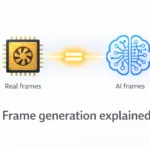
Frame Generation (RTX 40-series only) multiplies displayed frames for smoother motion but adds input latency. Skip it for combat. Use it during exploration if you want smoother movement.
The NVIDIA driver conflict you need to know about
This one is specific and worth knowing if you’re on an NVIDIA card and experiencing stuttering that doesn’t respond to any in-game settings.
Recent NVIDIA App versions include automatic game optimization that sometimes conflicts with Endfield specifically, causing blur and stuttering. Open the NVIDIA App, go to Graphics, find Program Settings, locate Arknights: Endfield in the list, and click Revert to disable automated tuning. Also turn off “Automatically optimize newly added games and apps” in NVIDIA App Settings to prevent the conflict from reappearing after driver updates.
One more thing while you’re in system settings: turn V-Sync off. It adds input lag by buffering frames. If you have a G-Sync or FreeSync monitor, use adaptive sync instead. Set a frame cap (60, 120, or 144) that matches what your hardware can sustain consistently — stable 60 FPS always feels better than unstable 80.
Additionally, the game defaults to DirectX 12. This is the better choice for modern hardware, but on systems with CPUs or GPUs from 2018 or earlier, DirectX 12 can cause instability. The launcher includes a Rendering Mode menu. Click the icon next to the Play button and switch to DirectX 11 if you’re experiencing crashes or severe instability on older hardware.
Background applications and game file integrity
Background software causes more stuttering than most players realize. RGB control software, monitoring overlays, and recording tools all compete for system resources and create frame time inconsistencies even on powerful hardware. Close anything non-essential before launching.
If stuttering persists after all of this, run the game integrity check in the launcher. Corrupted files cause exactly the kind of intermittent stuttering that looks like a settings problem but isn’t. The launcher scans and redownloads affected files automatically.
Performance Expectations table
| PC Tier | GPU Example | Expected Performance |
|---|---|---|
| Low-end | GTX 1060 / RX 580 | 1080p, medium-low settings, 45-60 FPS with TAAU |
| Mid-range | RTX 3060 / RX 6600 | 1080p maxed, 60-90 FPS with DLSS/FSR Balanced |
| High-end | RTX 4070 / RX 7800 XT | 1440p maxed, 90-120 FPS with DLSS/FSR Quality |
These are targets with the optimized settings from this guide applied, not default preset performance.
One thing worth noting: the game’s performance scales well with the settings changes above. A low-end system running optimized settings genuinly competes with a mid-range system running defaults. Time spent here pays off more than you’d expect.








Join the Discussion