
Most gaming setups are designed to look good in photos. A setup optimised for long sessions looks almost identical, but it feels completely different after three hours.
Gaming desk ergonomics is the part of peripheral setup that most guides skip over in favour of gear recommendations. The right desk setup for long sessions matters more than your chair model or your keyboard brand because it determines whether you can sustain comfortable play across a full session or spend the back half managing discomfort that accumulated in the first hour. Here is what actually changes things.
Monitor height and distance
In practice, what you will actually notice from incorrect monitor height is not immediate discomfort but a gradual neck stiffness that builds across the session and is difficult to attribute to a specific cause. The top of your monitor should sit at or slightly below eye level so that your gaze angles slightly downward, around 10 to 20 degrees, when looking at the centre of the screen. This keeps your neck in a neutral position rather than elevated or dropped.
Distance matters more than most players realise. Sitting too close forces your eyes to constantly adjust focus across different parts of the screen, which contributes more to eye fatigue than screen brightness does. The standard recommendation for 27-inch monitors is 60 to 80cm from your eyes. Larger screens need more distance proportionally. If you regularly experience headaches or blurring near the end of gaming sessions, testing a slightly greater monitor distance is worth doing before adjusting any other variable.
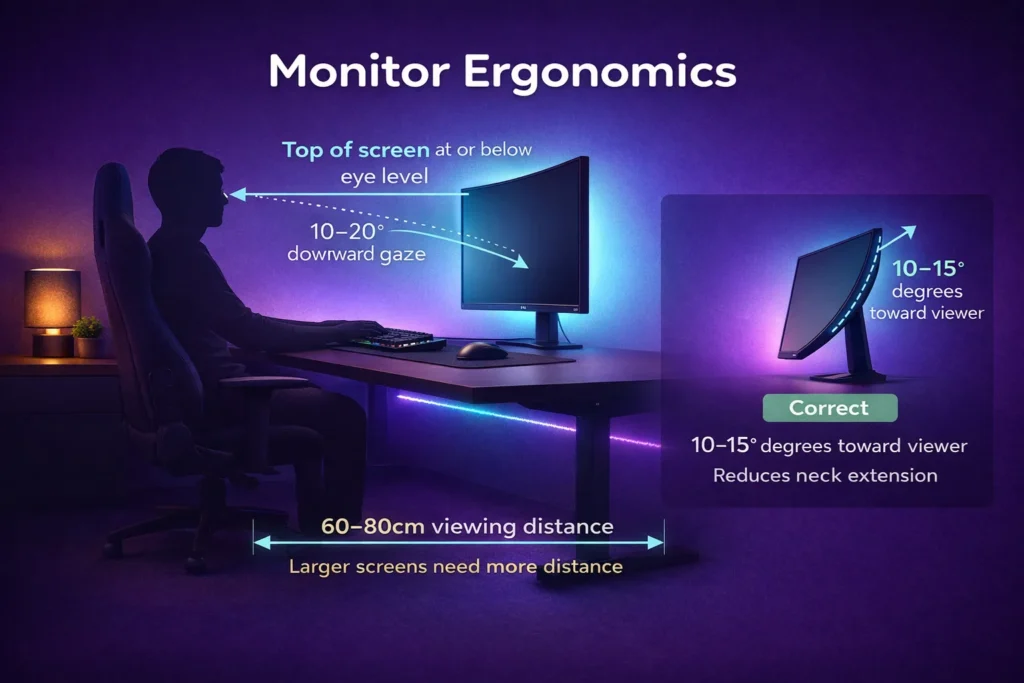
Monitor tilt is the often-skipped third element. Tilting the top of the monitor slightly toward you, 10 to 15 degrees, maintains the same comfortable downward gaze angle even when the monitor is placed at the correct height for your specific seated position.
Chair and desk height pairing
The chair and desk interact as a system, not as independent decisions. Getting this wrong is where most setups fail, because people set desk height based on the desk itself rather than their own proportions.
The correct sequence is this: set your chair height so that your feet rest flat on the floor and your thighs are roughly parallel to it. Your hips should sit slightly higher than your knees. Once your chair is adjusted correctly, set the desk height so that your forearms rest on it at a 90 to 100 degree angle at the elbow without raising your shoulders. If you cannot achieve this with your desk at its lowest setting, a keyboard tray that positions inputs below the desk surface is a practical solution. If your feet cannot reach the floor at correct chair height, a footrest solves this more effectivly than lowering the chair and raising the desk to compensate.
A desk that is too high forces your shoulders to elevate, creating tension across the upper trapezius that accumulates session by session. A desk that is too low creates forward head posture and wrist extension. Neither produces immediate obvious discomfort, which is exactly why they go uncorrected for months.
Wrist and arm positioning
For keyboard and mouse, the goal is a neutral wrist: neither bent upward, downward, nor twisted laterally. Bent upward (extension) is the most common problem in gaming setups. Keyboard stands that raise the rear of the keyboard, which are set to raised position on most gaming keyboards by default, create this exact problem across the entire session.
Lower the keyboard feet. Most gaming keyboards include adjustable feet. If you are buying a new board, our keyboard guide covers the options that support flat or negative tilt configurations out of the box. Flat or slightly negative tilt (rear slightly lower than front) is the position that keeps the wrist neutral while typing and gaming. This feels wrong initially if you are accustomed to raised keyboard feet, and then after a week it feels correct and you wonder how you tolerated the previous position.
Mouse height relative to keyboard matters too. Both should sit at the same surface level, and that surface should be at the elbow height established in the previous section. Raising the mouse surface above keyboard level is a common consequence of adding a thick desk mat, and it creates ulnar deviation across extended gaming. Thin mats or surface-mounted configurations avoid this entirely. Our mouse pad guide covers thickness differences and how they interact with wrist height at your specific desk surface level.
Cable management basics
Clean cable routing is not primarily aesthetic. Hanging or tangled cables create physical constraints on mouse movement, create trip hazards around chair castors, and create visual clutter that produces low-level cognitive load across extended sessions.
The practical minimum for cable management is this: all power and peripheral cables should be routed behind the desk and secured so they do not reach the desk surface or the floor in front of your chair. Cable clips along the desk edge and a single cable spine or sleeve running down the back of the desk leg accomplish this without tools or significant cost.
For mouse cables specifically, the choice between wired and wireless resolves many of these considerations, but if you use a wired mouse, a bungee or ceiling-mounted routing loop removes the drag and weight variation that affects tracking feel during extended gaming.
Lighting impact on eye fatigue
Day to day, this matters more than most setups account for. The source of eye fatigue in most gaming environments is not screen brightness but contrast between the bright screen and the dark surroundings. Your eyes constantly adjust between the lit screen and the darker background, and that adjustment process across a long session is fatiguing in a way that is hard to attribute directly but shows up as sore eyes and concentration difficulty by the second or third hour.
The solution is ambient lighting behind or beside the monitor that raises the room brightness without introducing glare on the screen surface. Bias lighting, a strip of LED behind the monitor matched to the screen’s colour temperature, is the most effective and lowest cost approach. It reduces the luminance ratio between screen and surroundings from a ratio that fatigues the eyes to one that maintains sustained comfortable viewing.
Overhead lighting positioned directly above the desk creates glare on glossy monitor surfaces and adds fatigue even on matte panels by creating uneven ambient distribution. If you cannot move overhead lighting, a matte monitor finish and positioning the screen to avoid the direct overhead reflection point eliminates most of this effect.
These five adjustments compound. None of them is dramatic in isolation. Chair at correct height, desk adjusted to that height, monitor positioned correctly, wrists neutral, cables clear, ambient lighting present: a setup built around these principles produces noticeably less accumulated fatigue at the end of a three-hour session than one that ignores them, regardless of how well the gear is specced.














Join the Discussion