
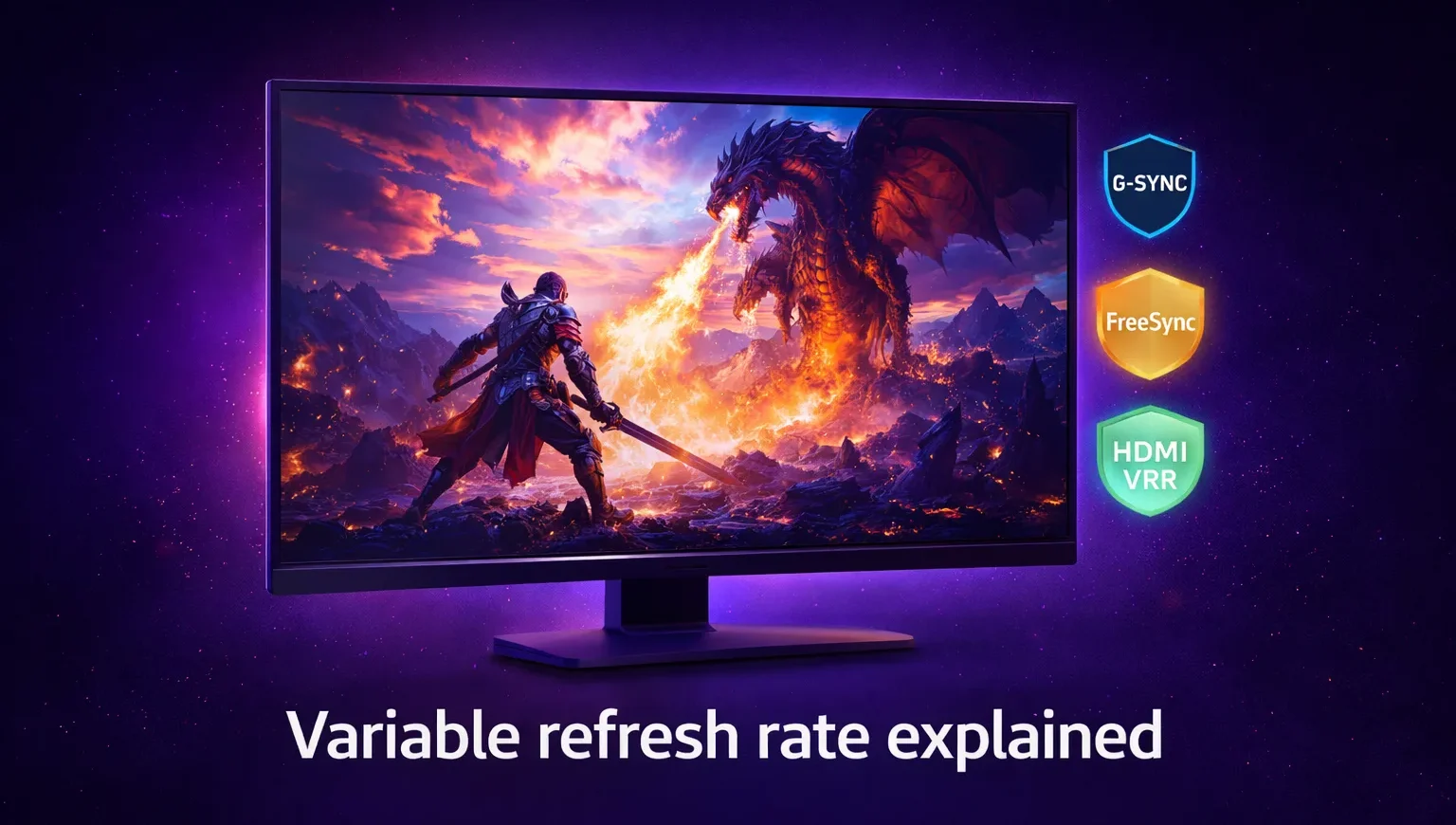
Variable refresh rate is one of those display features that sounds like marketing until you turn it off mid-session and immediately want it back. The smoothness it provides is not dramaticaly different in still screenshots or spec comparisons. It shows up in motion, during gameplay, in the absence of tearing and judder that you previously adapted to without realising they were there.
This guide covers what variable refresh rate actually does, how G-Sync, FreeSync, and HDMI VRR differ in practice, and which one matters for your setup.
What variable refresh rate actually does
Your monitor refreshes at a fixed rate by default: 144 times per second if you have a 144Hz display, 165 times at 165Hz, and so on. Your GPU renders frames at a rate determined by how complex the scene is, how much headroom the hardware has, and how the game is written. These two rates do not naturally synchronise.
When the GPU delivers a new frame faster than the monitor can display it, you get screen tearing: two partial frames displayed simultaneously as the monitor scans a new image before the previous one has finished. When the GPU delivers frames slower than the monitor refreshes, you get judder: the monitor displays the same frame multiple times in slightly irregular intervals, creating a noticable stuttering sensation.
Variable refresh rate solves both by making the monitor’s refresh rate follow the GPU’s output rate in real time. When the GPU renders a frame, the monitor refreshes at that moment rather than on a fixed schedule. At 60 FPS the display operates at 60Hz. At 90 FPS it operates at 90Hz. At 120 FPS it operates at 120Hz. The result is a frame-perfect display of whatever the GPU delivers, within the monitor’s supported range.
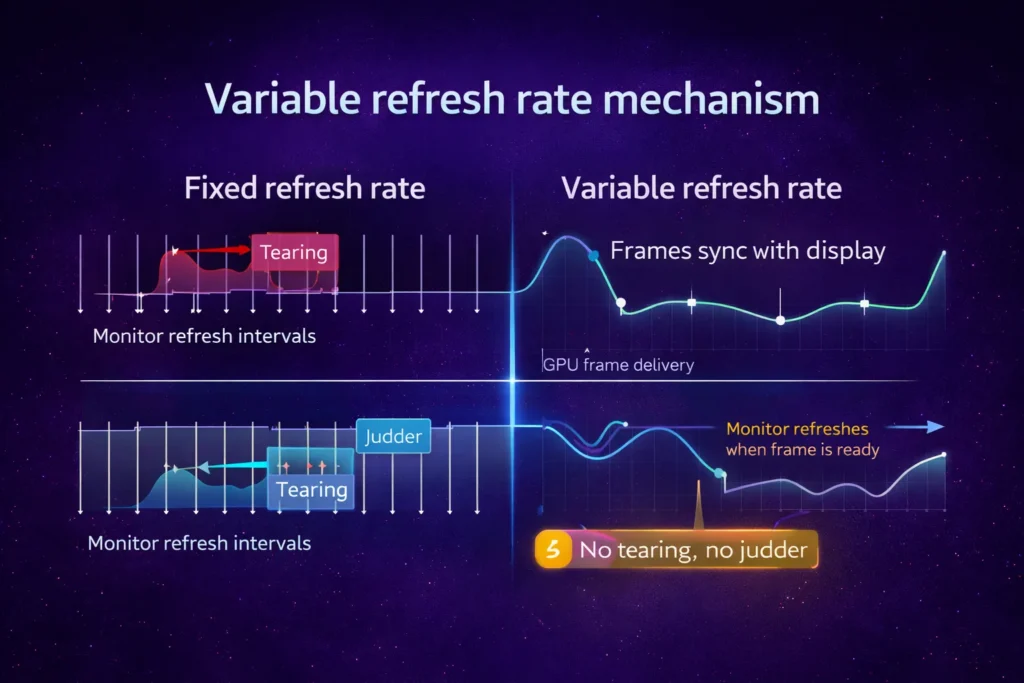
In practice, what you actually notice is this: panning shots feel smooth. Fast lateral movement in shooters tracks cleanly. Frame rate drops in demanding scenes produce a slower but still fluid image rather than a stuttering one. After a few sessions with VRR enabled, switching it off reveals tearing you had previously accepted as normal.
G-Sync, FreeSync, and HDMI VRR: how they actually differ
The underlying technology for all three is the same: the monitor communicates with the GPU to synchronise refresh timing. The differences are in implementation, certification, and cost.
G-Sync is NVIDIA’s proprietary standard. Monitors with a full G-Sync module contain dedicated NVIDIA hardware in the display itself that manages the synchronisation pipeline. This hardware delivers consistent results across the full VRR range, low framerate compensation below the minimum supported rate, and NVIDIA’s own testing and certification. G-Sync monitors cost more than comparable non-G-Sync displays partly because of this hardware. The quality floor is consistently high because every certified G-Sync monitor has passed NVIDIA’s validation process.
G-Sync Compatible is a lighter certification that NVIDIA validates for Adaptive-Sync monitors that meet minimum standards. There is no dedicated hardware module. The monitor uses the same adaptive sync technology as FreeSync but has been tested by NVIDIA to confirm it works well with their GPUs without significant artefacts. In practice, G-Sync Compatible monitors work reliably with NVIDIA cards and represent the majority of VRR monitor choices in 2026.
FreeSync is AMD’s implementation built on the VESA Adaptive-Sync standard. FreeSync monitors communicate with AMD GPUs using the same open standard that the rest of the industry built around. FreeSync Premium and FreeSync Premium Pro are higher tiers that add a wider VRR range and HDR support respectively. Our Samsung Odyssey OLED G6 review covers how FreeSync Premium Pro and G-Sync Compatible work together on a display that supports both standards on the same panel. FreeSync monitors with NVIDIA GPUs operate through G-Sync Compatible mode when the GPU supports it, which the majority of current NVIDIA cards do.
HDMI VRR is the consumer electronics implementation of variable refresh rate, standardised through HDMI 2.1. It is the VRR technology used when connecting a console, media player, or PC to a TV or monitor via HDMI rather than DisplayPort. HDMI VRR works independently of G-Sync and FreeSync certification in most cases, though many monitors that support FreeSync or G-Sync Compatible also support HDMI VRR on their HDMI inputs. For PC gaming via HDMI 2.1, HDMI VRR often handles the synchronisation even on FreeSync or G-Sync displays, depending on the connection.
Which one you actually need
Here is where it gets interesting, because the practical choice in 2026 is simpler than the three-way split implies.
If you have an AMD GPU: any FreeSync monitor works natively. FreeSync Premium adds a minimum 120Hz at 1080p and low framerate compensation, which produces smoother behaviour when frame rates dip below the VRR range floor. For competitive gaming at high frame rates, standard FreeSync is adequate. Our monitor guide covers the specific 1440p options that include FreeSync Premium or G-Sync Compatible certification with the VRR ranges worth targeting for different play styles. For demanding single-player titles where frame rates vary significantly, FreeSync Premium is worth the minor additional cost.
If you have an NVIDIA GPU: G-Sync Compatible monitors are the practical standard. Full G-Sync module monitors exist, cost more, and provide a more consistent low-latency VRR experience specifically at the edges of the VRR range. Whether the premium is justified depends on whether you notice VRR artefacts on G-Sync Compatible displays, which most players do not under typical gaming conditions.
If you are connecting via HDMI 2.1 (console or PC): HDMI VRR handles the synchronisation without requiring FreeSync or G-Sync support from the monitor’s DisplayPort implementation. A TV or monitor with HDMI VRR support and an HDMI 2.1 port will sync with a PS5, Xbox Series X, or PC GPU via HDMI regardless of its DisplayPort VRR certification.
The overlap matters too. Most current monitors support both FreeSync and HDMI VRR, and many that pass G-Sync Compatible certification also support FreeSync. A single display often works with AMD and NVIDIA GPUs and via HDMI depending on the connection and GPU. You are rarely locked into choosing one standard exclusively.
VRR range and why it matters
The supported VRR range determines when VRR is actually active during gaming. A monitor with a 48 to 165Hz VRR range does nothing to smooth output below 48 FPS and above 165 FPS. Between 48 and 165 FPS, the display syncs dynamically. Outside that range, fixed refresh behaviour returns.
Low Framerate Compensation (LFC) is the feature that handles the bottom of the range. When frame rate drops below the minimum VRR rate, LFC multiplies the frame and displays it at a rate within the VRR range, maintaining synchronised delivery. Without LFC, a drop below 48 FPS on a 48Hz minimum monitor produces judder. With LFC, it is smoother because the monitor continues to synchronise with a multiplied version of the output.
Most FreeSync Premium and G-Sync monitors include LFC. Standard FreeSync and some G-Sync Compatible monitors do not guarantee it. Checking whether a specific monitor includes LFC is worth doing if you play demanding titles where frame rates drop significantly during heavy scenes.
The honest summary
Variable refresh rate is one of the genuinely impactful display technology improvements of the past decade. Once you use it consistently, fixed-rate refresh feels like a step backward. If you are weighing up an OLED monitor for the VRR experience specifically, our burn-in guide covers the other consideration that comes with OLED panels that no VRR spec sheet addresses.
G-Sync, FreeSync, and HDMI VRR all deliver the core benefit: frame-synchronised display that eliminates tearing and reduces judder. The differences are in certification strictness, hardware cost, and edge case performance at the limits of the VRR range. For most gaming setups in 2026, any FreeSync Premium or G-Sync Compatible monitor from a quality manufacturer handles all three with practical interoperability across GPU brands via G-Sync Compatible support.
The setting that changes more about your daily gaming experience than your choice between these standards is simply having VRR enabled, at a refresh rate high enough that your GPU can sustain frame rates within the supported range for your primary titles.




Join the Discussion