

DirectX 12 optimization is one of those topics where most guides either go too deep into graphics programming theory or stay so surface-level that they don’t actually help you do anything. This one sits in between. You don’t need to understand the full API architecture to get better performance, but you do need to understand what DX12 actually does differently and why it sometimes makes things worse before it makes things better. Let’s go through it properly.
What did DirectX 12 actually change compared to DX11?
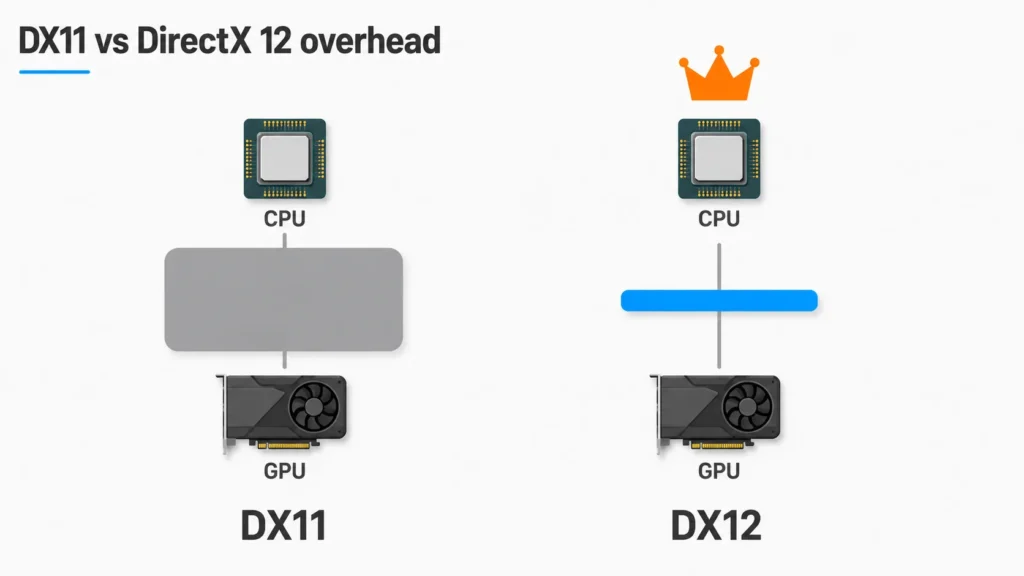
Here’s the thing most people miss. DirectX 11 was what’s called a “high-level” graphics API. It abstracted a lot of the low-level GPU management away from game developers. That made it easier to write games for, but it also meant the driver had to do an enormous amount of translation work at runtime, sitting between the game and the hardware and constantly converting high-level instructions into something the GPU could actually execute.
DirectX 12 removed most of that abstraction. The game talks more directly to the GPU, which means less driver overhead and the potential for significantly better CPU utilization when a game is properly written for it. Multi-threaded rendering becomes genuinely accessible under DX12 in ways it simply wasn’t under DX11. A well-optimized DX12 game can distribute rendering work across CPU cores more effectively than an equivalent DX11 game.
High-level API, driver handles GPU translation, easier to develop for
Heavy driver overhead, no explicit multi-threaded rendering control
Low-level API, game talks directly to GPU, much lower driver overhead
Developer responsible for explicit memory and resource management
The downside is that this responsibility shifts to the game developer. Writing a well-optimized DX12 game requires considerably more expertise than a DX11 game. When developers get it wrong, the result can be performance that’s worse than DX11, not better. This is why the API upgrade doesn’t automaticaly mean better frame rates.
Where does Vulkan fit and when does it appear instead of DX12?
Vulkan is to DirectX 12 what Linux is to Windows. A cross-platform alternative that offers the same low-level access philosophy but operates independently of Microsoft’s ecosystem. A game using Vulkan can run on Windows, Linux, Android, and other platforms from a single codebase, which is why you see it in games where cross-platform support matters, and why it’s the API of choice for games running on Linux via Proton.
Technically, Vulkan and DX12 are roughly equivalent in terms of what they expose to developers. Both are low-level, both require explicit memory management, both enable multi-threaded rendering. The differances are mostly in implementation detail and tooling rather than in what the GPU can actually do with either of them.
Vulkan titles on Linux via Proton often perform surprisingly well because Proton’s translation layer was built specifically to handle Vulkan efficiently. If you run games on a Linux system, prefer Vulkan over DX12 when the game gives you the option.
In practice, what this means for you as a player is that the API choice matters less than the developer’s implementation quality. A well-optimized Vulkan title and a well-optimized DX12 title will deliver similar results on the same hardware.
Why do DX12 and Vulkan cause stuttering in the first session?
Honestly, this one is one of the more impactful things to understand if you’ve ever launched a DX12 or Vulkan game and experienced stuttering that disappeared after the first hour of play. The explanation is shader compilation.
Both DX12 and Vulkan require shaders to be compiled from an intermediate format to your specific GPU’s native instruction set. Under DX11, the driver handled this at install time or first launch in a relatively opaque way. Under DX12 and Vulkan, this compilation happens more explicitly, often on the fly as you encounter new visual situations for the first time. Each new shader combination the engine hasn’t seen before on your specific hardware gets compiled in real time, and that compilation causes a stutter.
After your first play session, the compiled shaders get cached on disk. On your second launch, the engine loads from cache instead of compiling, which is why DX12 and Vulkan games almost always stutter more on first play than on subsequent sessions. This is normal behavior, not a bug.
The stutter pattern is distinctive: it happens in new areas, with new visual effects, and with new combinations of on-screen objects. If you’re experiencing this specifically in new content and it improves over time, you’re seeing shader compilation in action, not a performance problem that needs fixing.
Shader pre-compilation: what it is and how to trigger it early
Many modern games with DX12 or Vulkan include a shader pre-compilation step that you can trigger manually before your first play session. This compiles the shader cache before you start playing, so the on-the-fly compilation stutters are mostly avoided in-game. The option is usually found in graphics settings under something like “compile shaders,” “build shader cache,” or “optimize shaders.”
-
Check the graphics settings menuBefore starting a new DX12 or Vulkan game for the first time, go to graphics settings and look for any shader compilation or shader cache option. Not every game has this, but many modern titles do.
-
Run the pre-compilation at launchIf the option exists, run it before your first session. Let it complete fully. It may take 10 to 30 minutes depending on your CPU and the game’s shader complexity. Do not skip it.
-
Let the first session run its courseEven with pre-compilation, some stutter in the first session is normal. If stutter persists significantly into your second and third sessions, something else is causing it.
For games without a manual pre-compilation option, the practical approach is to accept that the first session will have some compilation stutter and let it run rather than restarting repeatedly. Restarting resets the in-progress cache and extends the total compilation time across multiple sessions instead of concentrating it in one.
Per-game settings that matter most for DirectX 12 optimization
And look, I know this sounds like a lot, but stay with me. The settings that matter most for DirectX 12 optimization are not the same as the settings that matter in DX11 games. The GPU-bound settings (resolution scale, texture quality, shadow distance) work the same way. What’s differant is how the game handles CPU-side work.
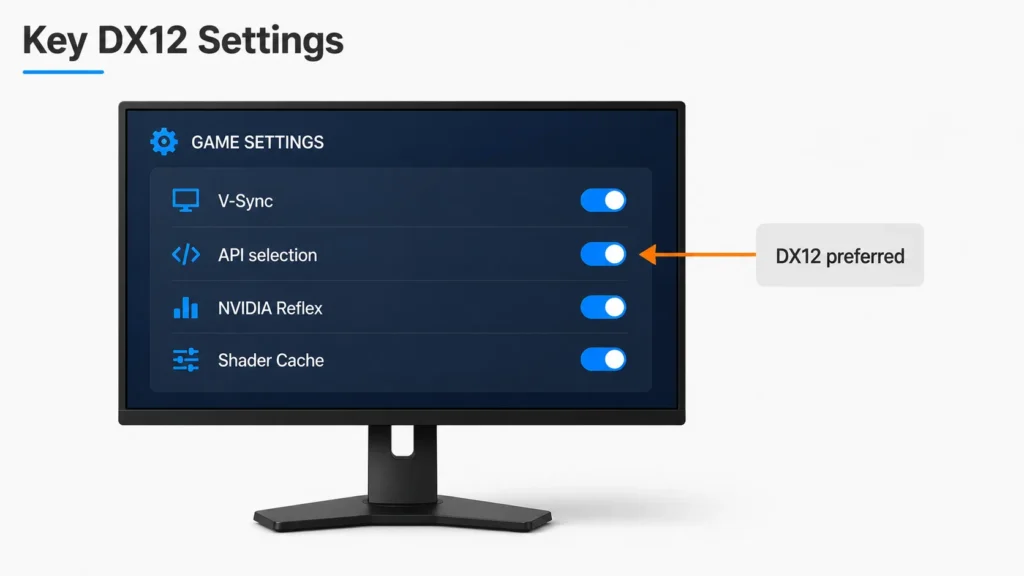
Ray tracing in DX12 games deserves specific attention. DX12’s explicit control over ray tracing workloads means that ray tracing performance scales more predictably with hardware capability than it did under older APIs. But it also means the setting is more binary than it used to be: when ray tracing is enabled in a DX12 game on hardware that supports it, the overhead is more deterministic. When you’re on hardware at the edge of ray tracing capability, DX12 will show you exactly where the limit is without softening it.
The Variable Rate Shading (VRS) option, where present, is worth enabling in DX12 titles. It allows the engine to render different areas of the frame at different shading rates, reducing GPU work in areas where the resolution detail won’t be noticeable. On supported hardware, this can recover 5 to 15% of GPU performance with minimal visual impact. The feature didn’t exist under DX11, and most players leave it disabled because it sounds optional.
Which API should you choose when the game gives you the option?
The right choice depends on one thing more than anything else: which API was the game primarily developed and tested against. If a game ships with DX12 as the default and also offers DX11 as a fallback, DX12 will typically perform better on modern hardware because that’s where the developer focused their optimization effort. The DX11 path is there for compatibility, not performance.
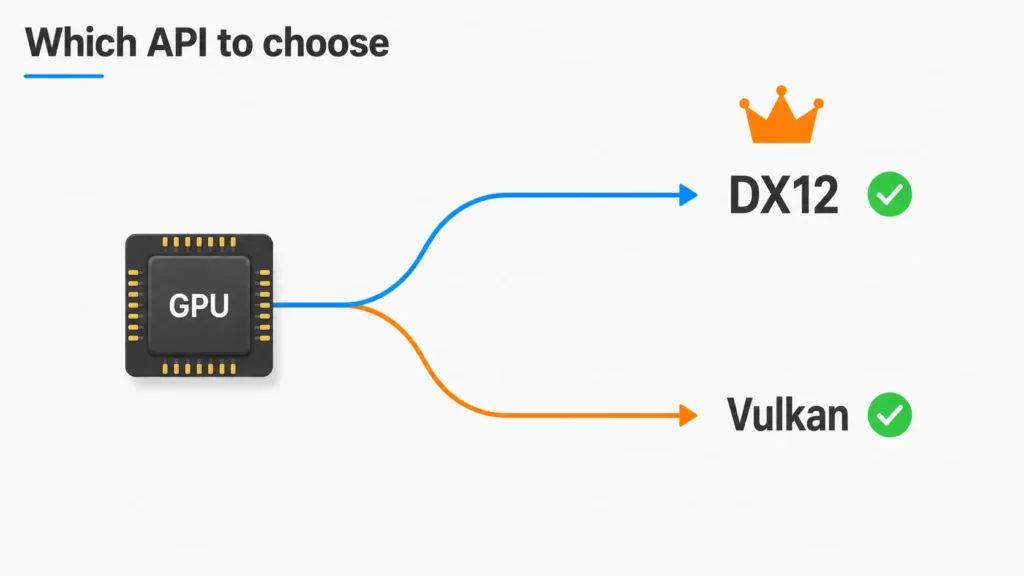
If a game offers both Vulkan and DX12 and you’re on Windows, run a brief comparison in a consistent benchmark area. In most cases they’ll be within a few percent of each other. Vulkan occasionally edges ahead on AMD hardware. DX12 occasionally edges ahead on NVIDIA hardware. Neither advantage is consistent enough to be a universal rule.
Our guide to reducing stuttering in PC games covers what to do when API selection alone doesn’t solve the stutter problem, including driver-level and Windows-level adjustments that apply across both DX12 and Vulkan titles.
For players using upscaling: the API you’re running affects how frame generation and upscaling integrate with the rendering pipeline. DLSS runs on NVIDIA hardware regardless of API, but its performance characteristics can shift slightly between DX12 and Vulkan paths depending on how the game integrates the SDK. If upscaling behavior feels inconsistent between API modes in the same game, our FSR 4 vs DLSS guide covers how each upscaling technology interacts with the rendering pipeline, and that’s the likely explanation.
For a full breakdown of how frame generation integrates with different rendering APIs, our frame generation guide explains what’s real performance and what’s synthesized.









Join the Discussion