

Thermal throttling is your PC quietly lying to you. Your hardware reduces its own speed to protect itself from heat, and most people never realise it’s happening — they just notice the game feels worse than it should.
What thermal throttling does to your frame rates in practice
Here’s the thing most people miss: thermal throttling isn’t a single dramatic event. It doesn’t announce itself. What happens is your CPU or GPU hits its temperature limit and starts pulling back its clock speeds, sometimes by 10%, sometimes by 40%, depending on how hot things get. The result is a slow, inconsistent deterioration of performance.
You’ll notice it as stuttering. Frame pacing becomes erratic, the game feels sluggish even when your GPU usage looks normal on screen, and you can’t figure out why a system that benchmarked fine last month now struggles in the exact same scene.
Honestly, this one surprised me the first time I understood it: the hardware is technically working correctly. It’s doing exactly what it was designed to do. The problem isn’t the throttling itself, it’s whatever caused the temperatures to climb in the first place.
How to tell if your CPU is throttling right now
Open HWiNFO64 (free, consistently the most reliable tool for this) and look for two values while a game is running: your CPU’s current clock speed and its “TJ Max” or thermal throttle threshold. If you see the clock speed drop at the same moment the temperature hits that ceiling, you’re throttling. If your CPU is also running at 100% usage during these drops, you may be dealing with a bottleneck issue alongside the thermal one our guide to CPU bottlenecks covers how to separate the two problems.
MSI Afterburner can run an overlay while you play, showing CPU temp and clock speed simultaneously. Log a session, then review it. Look for the temperature spiking and the clock pulling back in the same timestamp.
In HWiNFO64, enable logging before a gaming session. If CPU clock drops whenever temperature hits 90C or above, thermal throttling is confirmed.
The value to watch for Intel CPUs is “CPU Package Power Limit Throttling.” On AMD, look for “CPU Core Clock” dropping while “CPU Die (CCD) Temp” is at or near its maximum.
How to tell if your GPU is throttling right now
GPU throttling is slightly easier to catch. In MSI Afterburner, add the “GPU Clock” and “GPU Temp” readings to your overlay. If you haven’t set up Afterburner’s overlay yet, our MSI Afterburner guide walks through the monitoring setup from scratch, including which sensors to enable and how to arrange them. A healthy GPU will hold its boost clock steady during demanding scenes. A throttling GPU will show the clock oscillating — rising, hitting the temp limit, dropping, rising again, over and over.
I once spent two hours chasing stuttering in a demanding open-world game before I noticed the GPU clock was swinging between 1800MHz and 2400MHz every few seconds. The temperature was locked at 84C. Repasting the cooler fixed it in twenty minutes.
The other thing to check is GPU power limit throttling, which is differant from thermal throttling but often appears alongside it. If your PSU can’t deliver stable power under load, you may see both types triggering at once.
The most common causes and how to address each one
Dried-out thermal paste is genuinely one of the more impactful things you can fix. On a desktop GPU or CPU that’s two or three years old, the factory-applied paste can harden and crack, and the thermal differance between a fresh application and an old one can be 10 to 15 degrees Celsius. That’s often the entire margin between clean performance and constant throttling.
Dust blockage is the other major cause most people overlook. Dust accumulates on heatsink fins and GPU cooler intakes, turning what should be airflow into a dead zone. In particularly dusty environments this can happen fast — within six months of a fresh build.
-
Clean your PCRemove side panels and use compressed air to blow dust from heatsink fins, fan blades, and GPU cooler intakes. Direct the airflow outward, not inward.
-
Check thermal pasteRemove the CPU cooler or GPU heatsink. If the paste is dry, flaky, or has cracked, clean it with 99% isopropyl alcohol and reapply a fresh pea-sized amount.
-
Set fan curvesIn MSI Afterburner (GPU) or your BIOS (CPU cooler), set a more aggressive fan curve so temperatures are controlled before they reach the throttle threshold.
A third cause and this one catches people off guard, is inadequate case airflow. You can have a great cooler on a CPU that still throttles because the hot air it’s ejecting has nowhere to go inside the case.
Cooling paste, airflow, and fan curves: long-term fixes
And look, I know this sounds like a lot, but stay with me. The good news is that fixing thermal throttling is genuinely one of the most cost-effective performance upgrades available. A tube of quality thermal paste costs under five dollars and can recover performance that feels like a hardware upgrade.
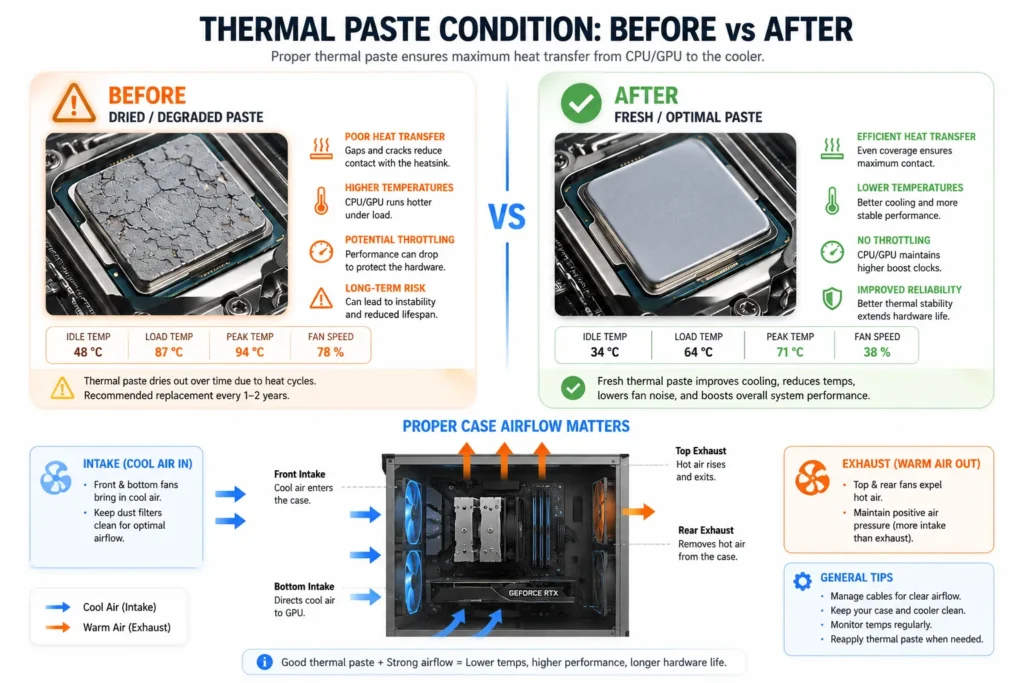
Fan curve tuning is where things get interesting for desktop builds. Most motherboards and GPU software ship with conservative fan profiles that keep noise low at the cost of temperatures. The trade-off isn’t always worth it. Bumping your GPU fans to 60% at 70C instead of 80C costs you a few decibels and can drop peak temperatures by 8 to 12 degrees, which is often enough to prevent throttling entirely.
A 10-degree reduction in GPU temperature can mean the difference between 1800MHz and 2100MHz sustained clock speed, which translates directly to frame rate — often 10 to 18 FPS in CPU-limited scenes.
For long-term airflow, the principle is simple: you want cool air entering the front and bottom, hot air exiting the rear and top. If your intake and exhaust fan counts are wildly unbalanced, fix that before anything else. Adding a 15-dollar intake fan to a case with poor front airflow can solve throttling that no amount of paste or fan curves would fully address. If cleaning and repasting don’t bring temperatures under control, the cooler itself may no longer be adequate, our best CPU coolers guide covers when to upgrade and which tier makes sense for your chip.
Laptops vs desktops: why the problem is different on each
On a desktop, thermal throttling is almost always fixable without spending money. The causes dried paste, dust, poor airflow. are all addressable with cleaning supplies and time. The hardware has space to cool itself, and you can replace the cooler entirely if needed.
Laptops are a fundamentally differant problem. The thermal budget is smaller by design, the airflow is tightly constrained, and the paste is harder to reach. Gaming laptops throttle more readily because they’re trying to run desktop-class power levels through a chassis the size of a notebook.
Undervolting is the most effective software-side fix for laptop throttling. Reducing the CPU voltage reduces heat output without reducing clock speeds, and on many laptops it delivers meaningful performance gains with no hardware changes at all. The tool for this on Intel systems is ThrottleStop or Intel XTU. AMD laptop CPUs can sometimes be tuned through the BIOS or manufacturer software.
If you’re on a gaming laptop that runs hot but performs below what its specs suggest, undervolting and cleaning the fan vents are the first two things to try. Desktop users who’ve never repasted a CPU that’s more than two years old will almost certainly see a temperature improvement from doing it now.
Thermal throttling is suprisingly common and suprisingly fixable. Most of the time it’s not a hardware failure, it’s just a PC that needs cleaning and some attention to its cooling setup.








Join the Discussion